




























































My rebounds
This page contains a wealth of functionality that allows you to create personalized databases with specific characteristics and descriptions within the website.
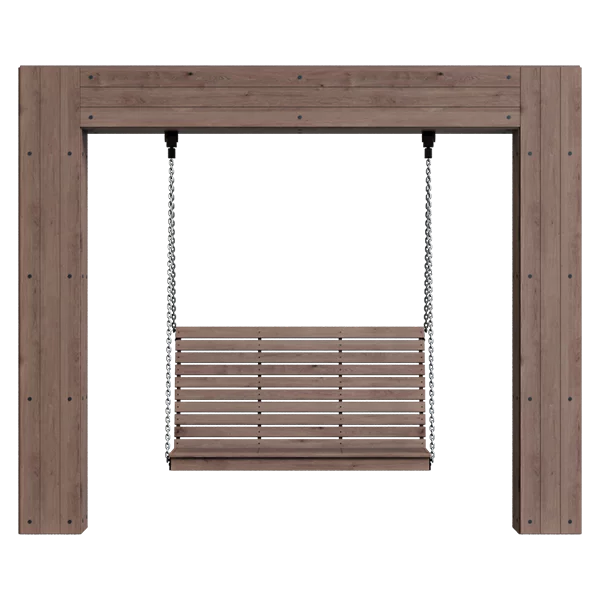
To create your first collection, go to the collections page and click the "New Collection" button, enter a name, and click "Save." Alternatively, click the "Plus" icon in the model thumbnail or on the model's page.
The collection page contains functional buttons for managing the current collection and information about the collection. Below is a description of all the functional buttons and how the collection works:
- Active Collection: highlighted in bold and with a green circle displaying a counter of models added to the collection. A collection can be deleted by clicking the "X" icon to the right of the collection name; deletion occurs without confirmation, and deleted collections cannot be restored.
- Add to Active Collection: If this function is active, all new models will be added to the current collection until the limit of 50 models is exceeded.
- Ask Every Time: If this function is enabled, a context menu will appear when adding a new model, allowing you to select the collection to which you want to place the model.
- Change Collection Name: The button with the same name and a pencil allows you to change the name of the current collection.
- Download All: This button downloads all models and their previews. The archive name and preview will have the same name for ease of use across different operating systems. When clicked, you will be prompted to download all models or select from the available ones. To download the required number of models, you must have at least the same number of available downloads. This function is only available to users with a positive download count and is not available to users with "Designer" permissions.
Download All: When clicked, the server receives a request to create a master archive; this takes time. Depending on the size of the master archive, it will be split into additional 512MB archives. Do not cancel the download; wait until all archives are downloaded. This may take a significant amount of time. Much depends on your internet speed, but it will be faster than downloading models individually. When you click "Download All," you will be charged for the number of models you download, even if you click "Cancel" afterwards.
- Save: This button saves all changes on the page; you can also save each comment on a model individually. If you make changes to a selection but don't save them, your browser will display a warning when you refresh the page. If you accept, your changes will be lost permanently; if you click "Cancel," the save button will turn red. Click it to save all changes.
- Share: This button allows you to share a selection via instant messaging apps or save the generated link to your clipboard for further sharing. Shared selections are not linked, meaning you can make changes to a selection without them being visible to other users, and vice versa. When you click the link, you must save the selection; then it will appear in your list of selections, allowing you to edit it. Links to the selection are stored in the database for 30 days.
- PDF: This button exports the selection to PDF with all available information.
- Download Previews: This button downloads all previews of the models in the selection. The previews will be downloaded as a single archive in .png format, without a background, but with watermarks to avoid interfering with collage creation. Compiling all the previews and creating the archive on the server takes time; this can take up to 5 minutes.
- Add a Description: This field allows you to leave a comment on the model using text and links; the maximum character limit for each description is 1100. To the right of the field, there is a "cross" symbol that removes the model from the selection, and a "Save Changes" button. At the bottom of each selection, there is also an area with a description that applies to the entire selection.
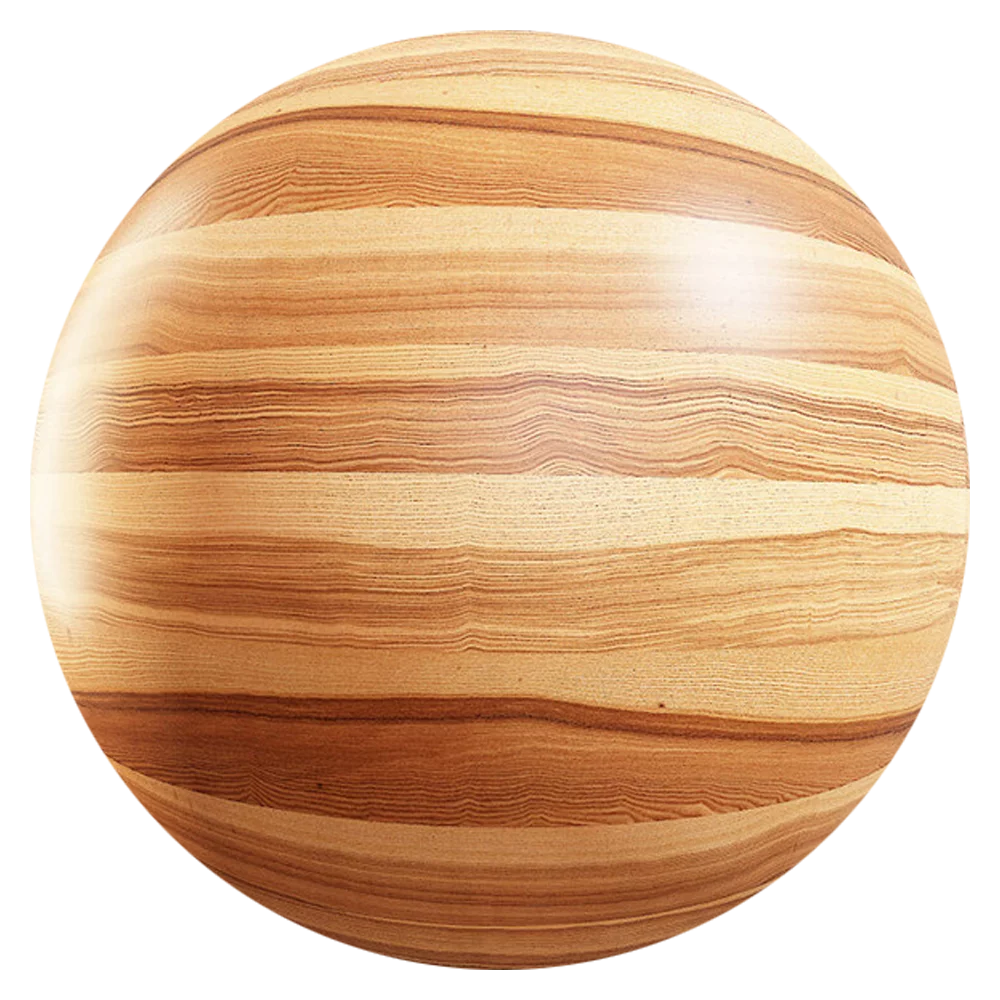
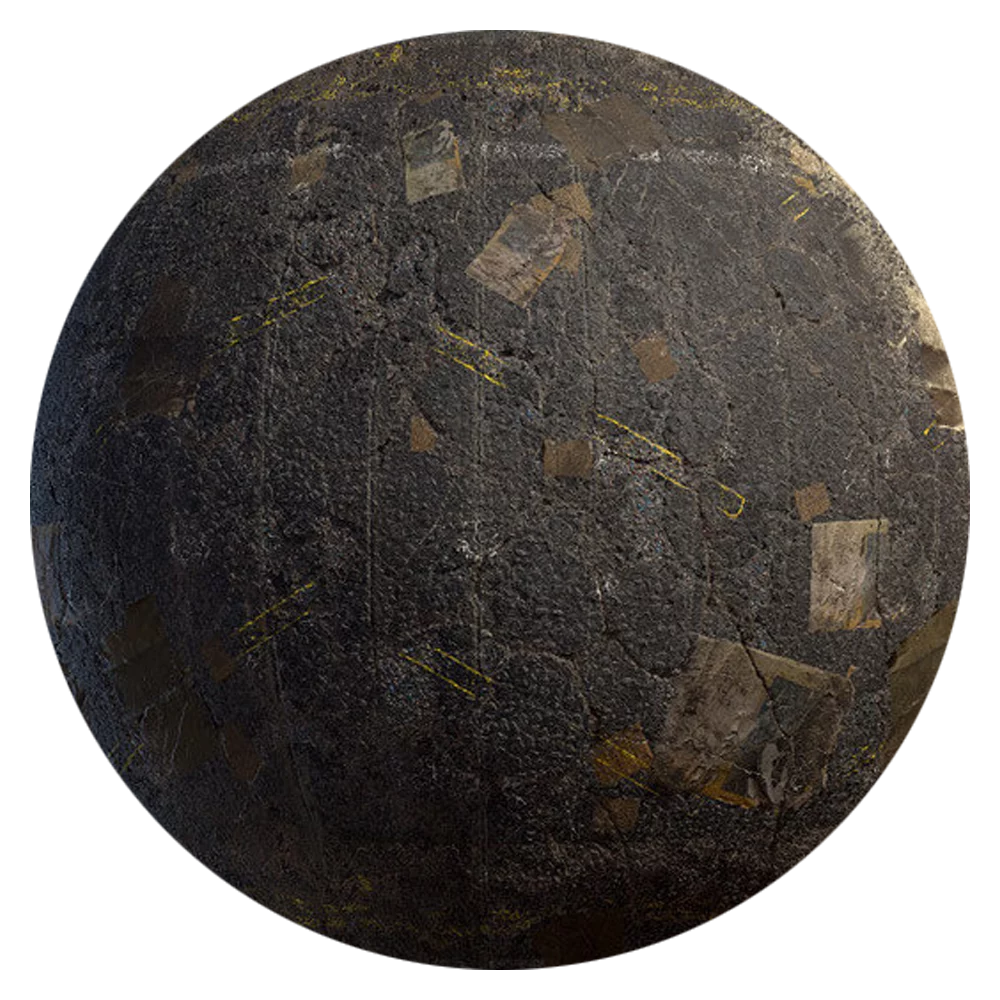
- Select Material: You can attach a material from the website database to each model. To do this, click the plus sign; you will be taken to the material selection. You can then select multiple materials by clicking the "Plus" button. To return to the selection, click the "Return to Selection" button.
- Upload data: You can upload an archive in .rar, .zip, or .7zip format, no larger than 250 MB, containing additional information about the visualization task. The archive is stored as long as at least one copy of the selection exists.
You can create a total of 50 selections, each containing 50 models; users with Designer permissions can create 100 selections.
The link to the selection you share is stored in the system for 30 days; selections stored in your account have no expiration date.
Archives containing uploaded data for selections are stored as long as the selection with the archive exists.
The functionality itself is completely free.


