






































































Upload the model
To upload models, please fill out a standard upload form, specifying:
Type: You choose the type of model you want to upload, available for free or for download.
Name: The short name of the model in the form (Item Name) (Model) (Factory) (Article) (Other Information) in Russian.
Category: Carefully select the category to which the model belongs.
Styles: Modern or classic, multiple selections possible.
Platform: Select 3dsmax 2009 - 2024 version or texture, multiple selections possible, texture.
Renderers: Corona, V-Ray, Texture.
Dimensions: This field is optional, but recommended.
Polygons: This field is optional, but recommended.
Material: Select the primary material present in the model, multiple selections possible.
Color: Select the primary color present in the model, multiple selections possible.
Tags: Words that can be used to search for models in the database. A total of 50 tags are allowed.
Product Link: Provide a link where the actual product can be purchased. This is optional.
Requires Rendering: Click the checkbox if you would like us to render the model. You will receive a reward for this model of 4 downloads instead of 5. Rendering is performed on a first-come, first-served basis. Renderings are processed within 14 business days. If moderation is successful, you will receive the downloads immediately.
Description: A description of the model; do not duplicate the name, tags, or other information. Description search is not available.
Model Archive: Model archive upload form. Archives are accepted in .rar, .zip, or .7zip formats and are no larger than 250 MB. The archive should not contain model previews, only the model file, JSPORT file, and textures.
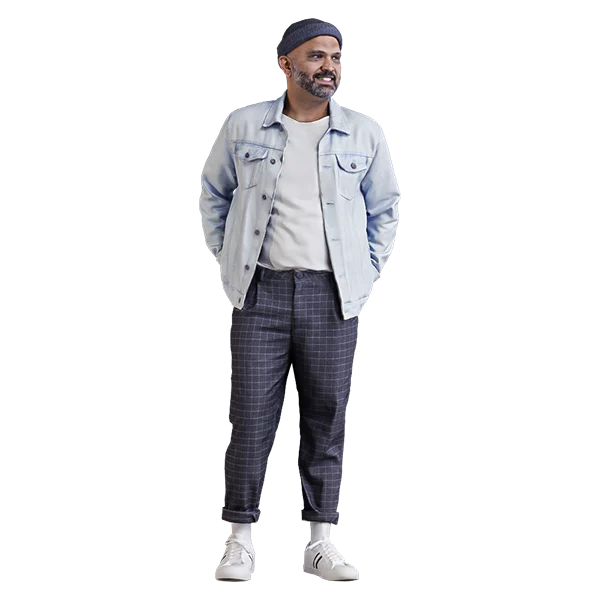
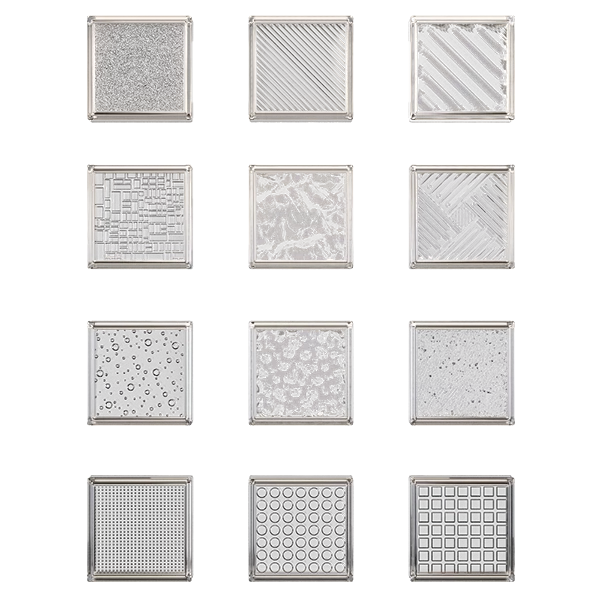
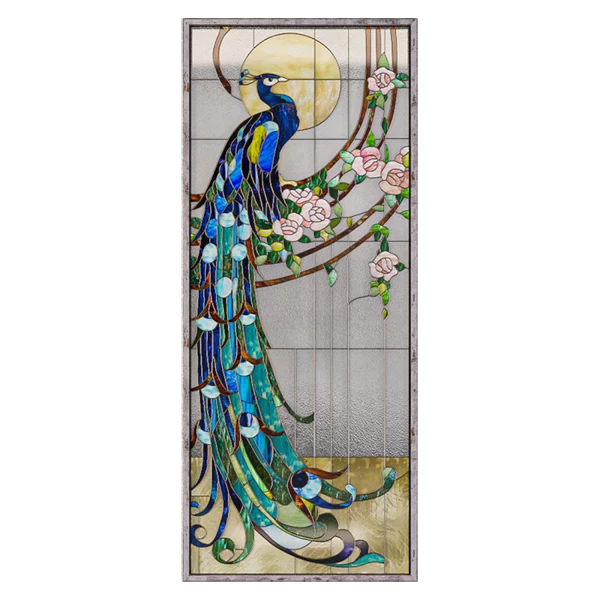
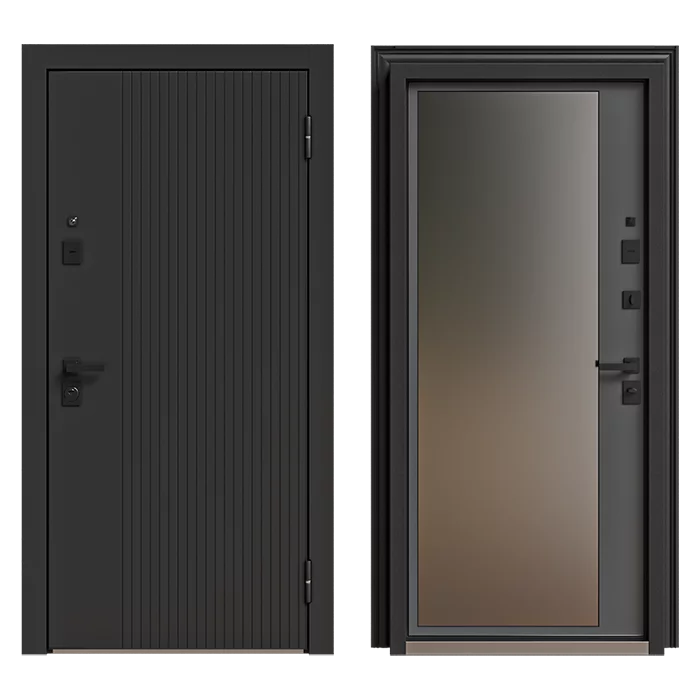
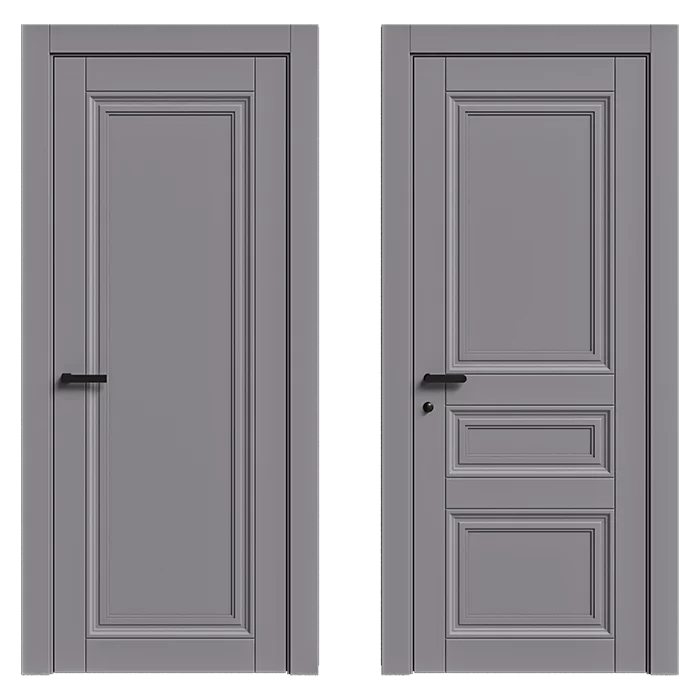
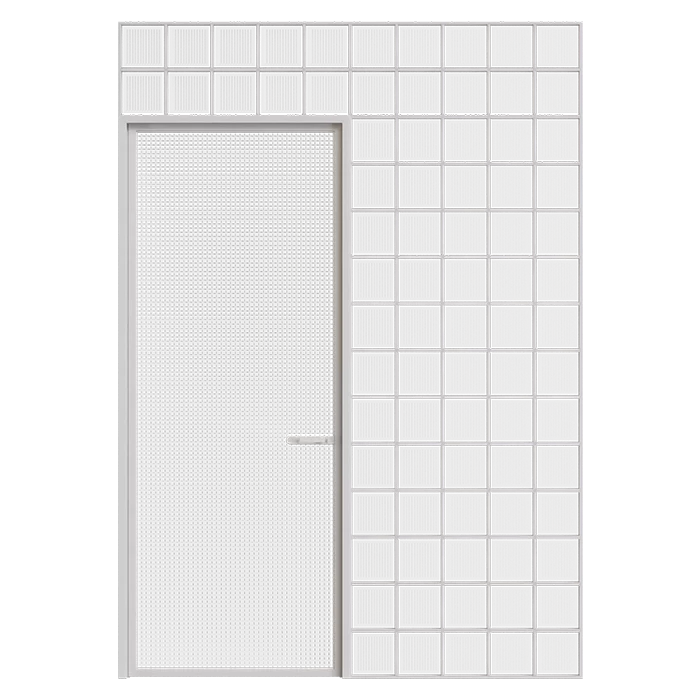
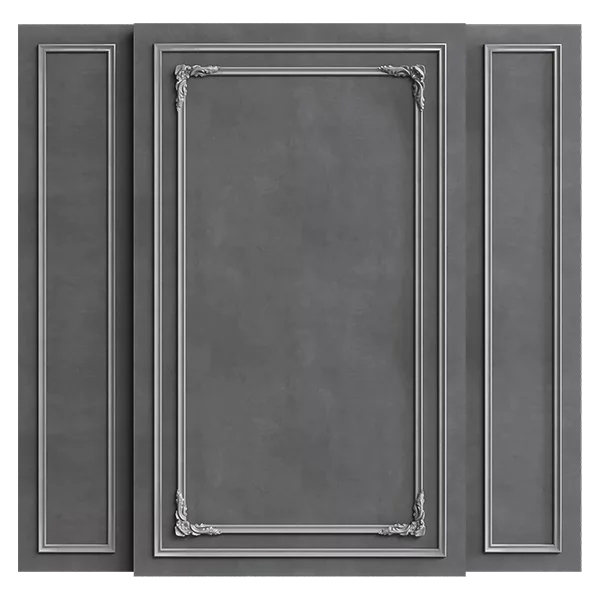
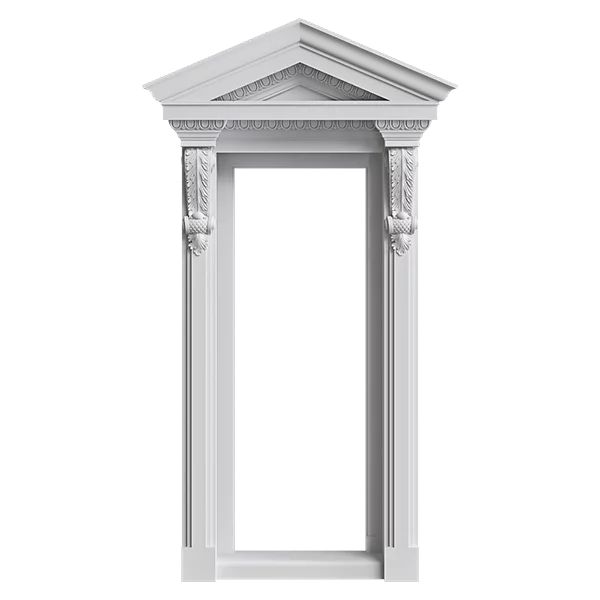
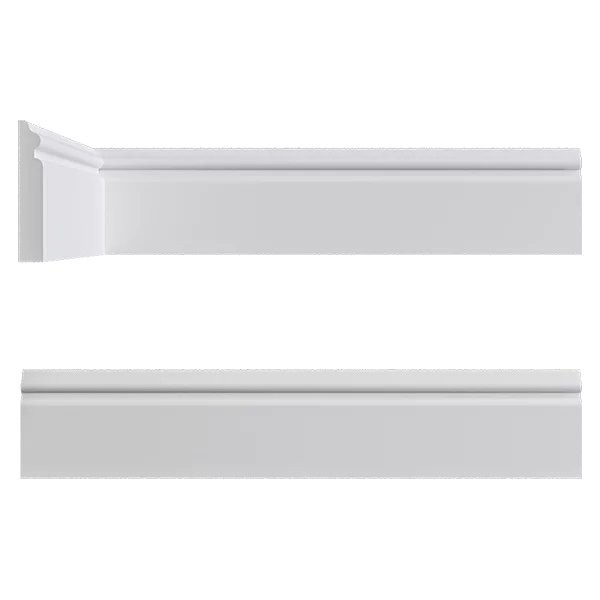
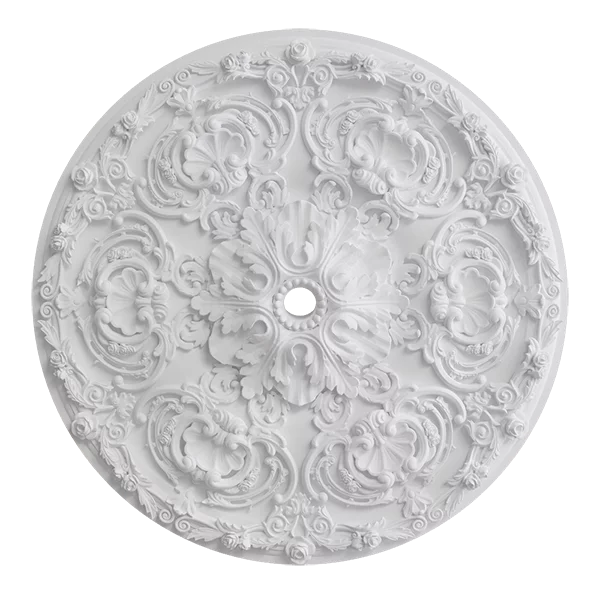
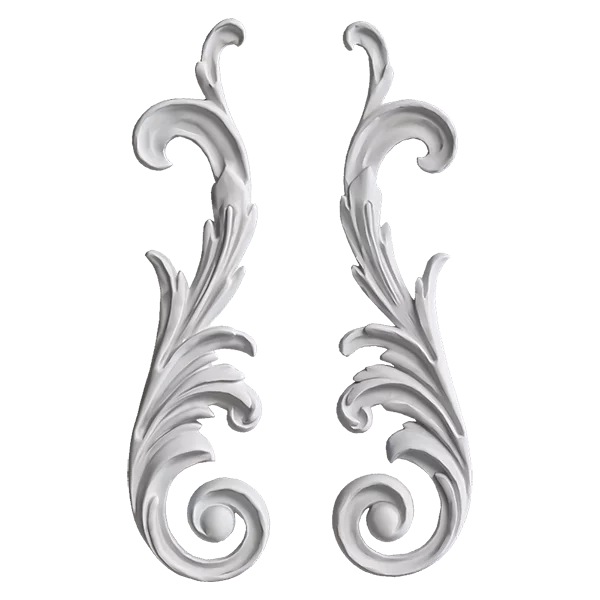
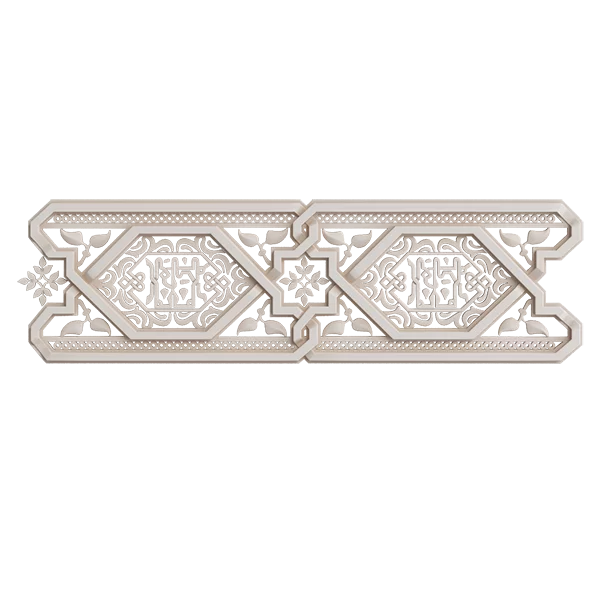
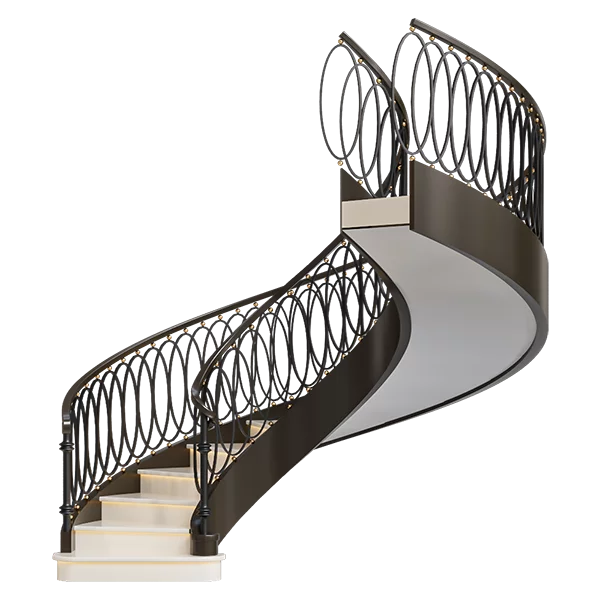
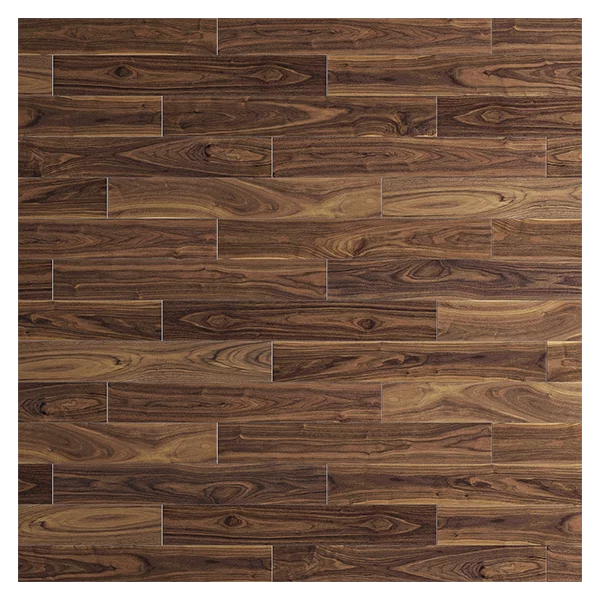
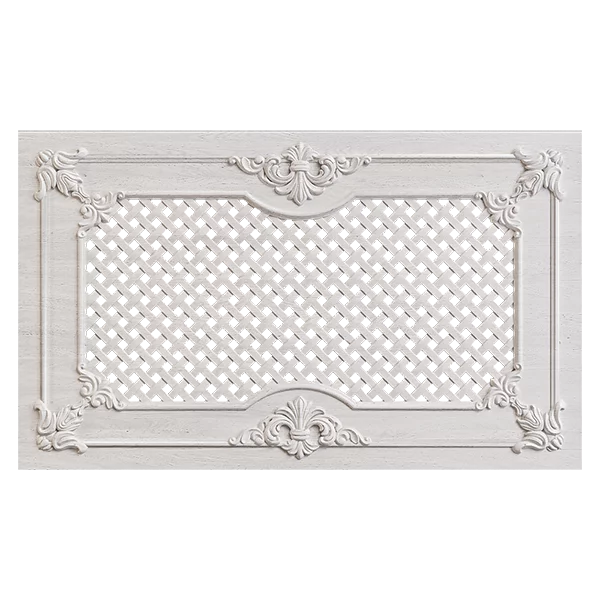
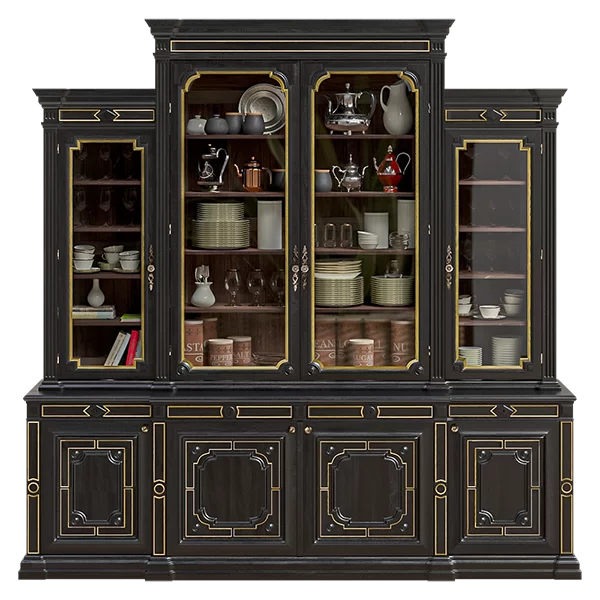
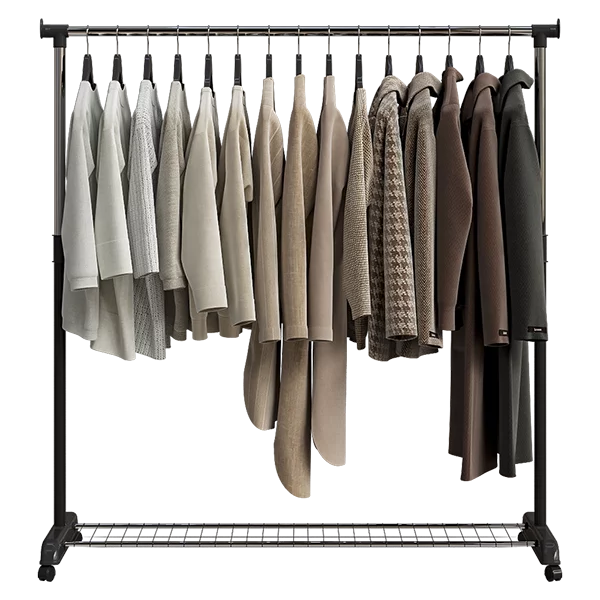
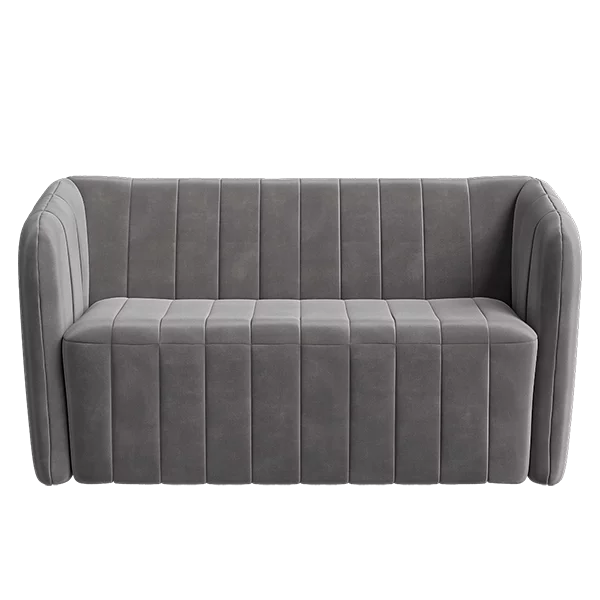
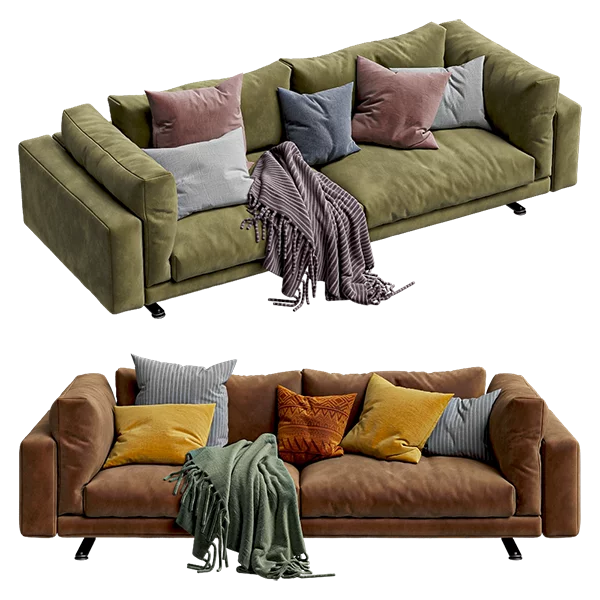
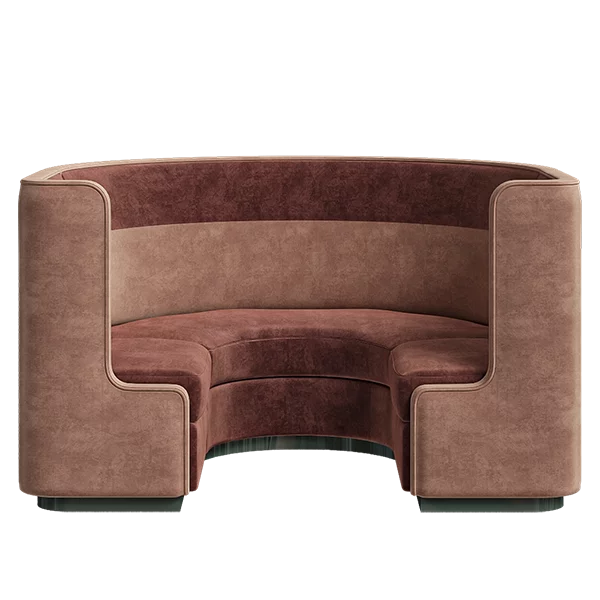
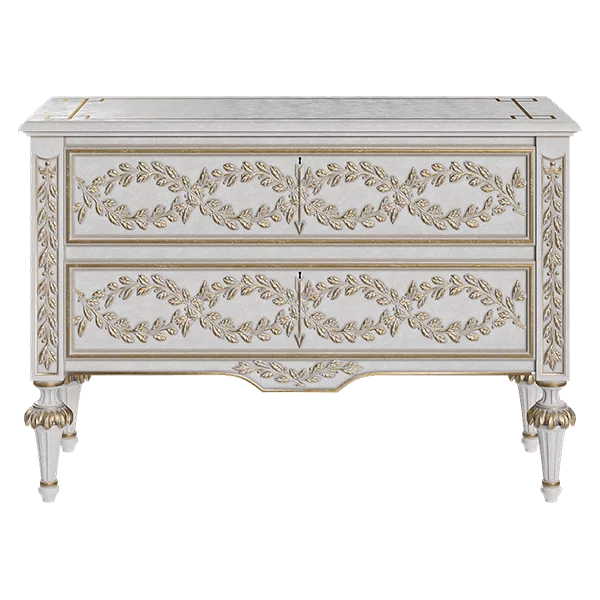
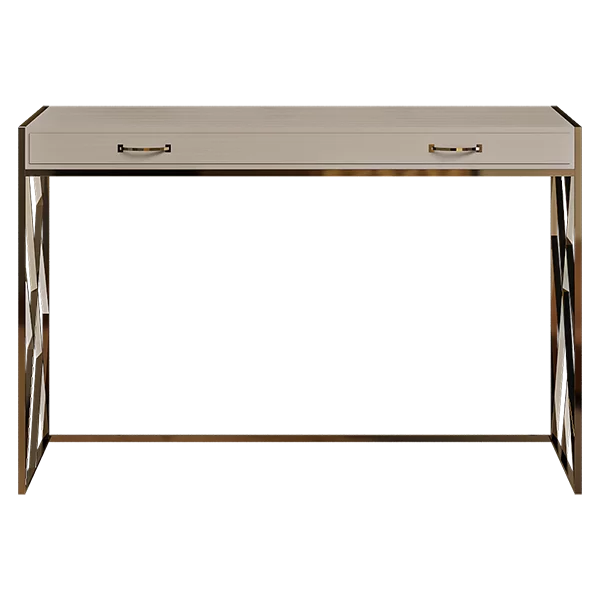
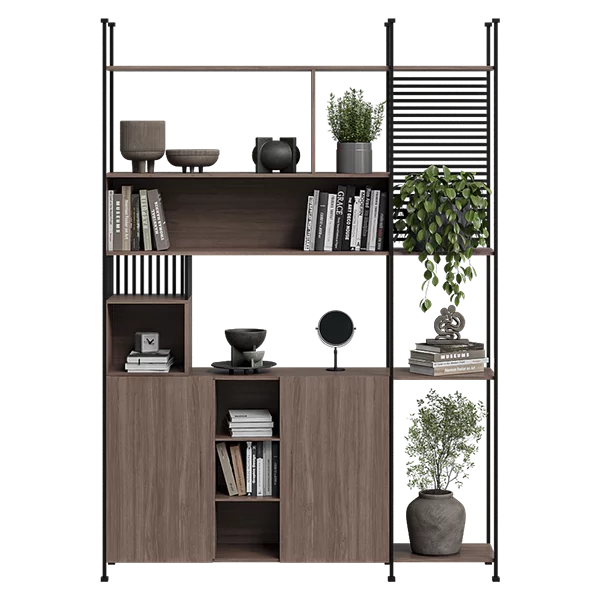
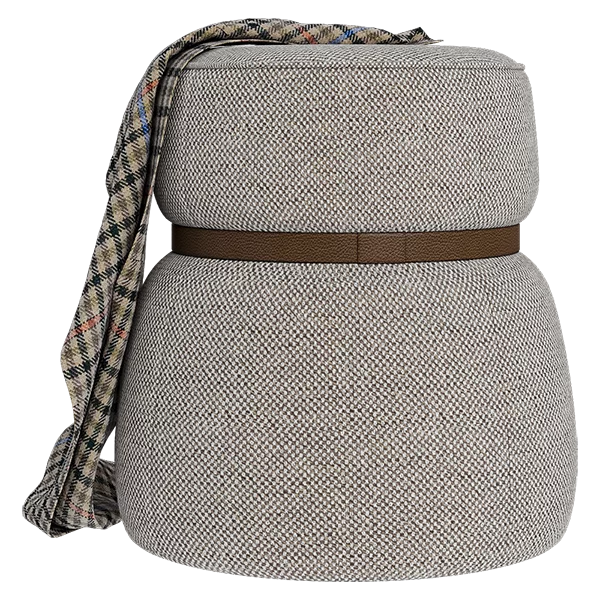
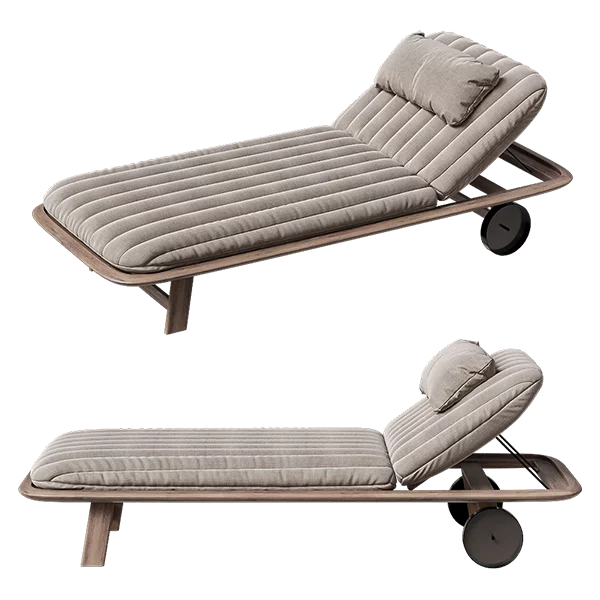
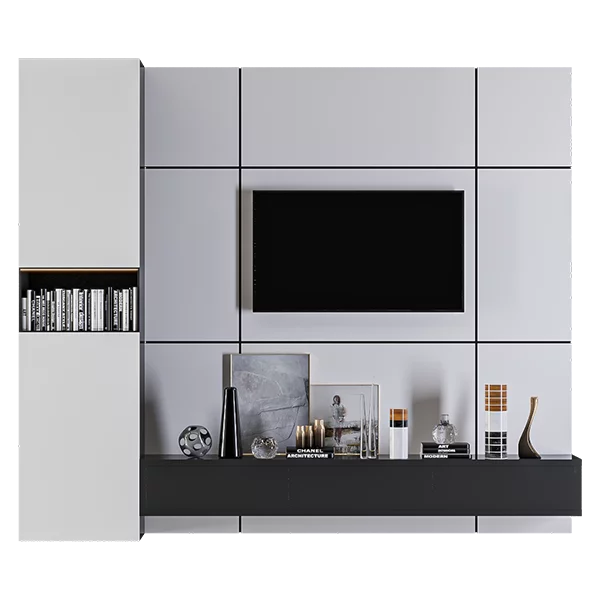
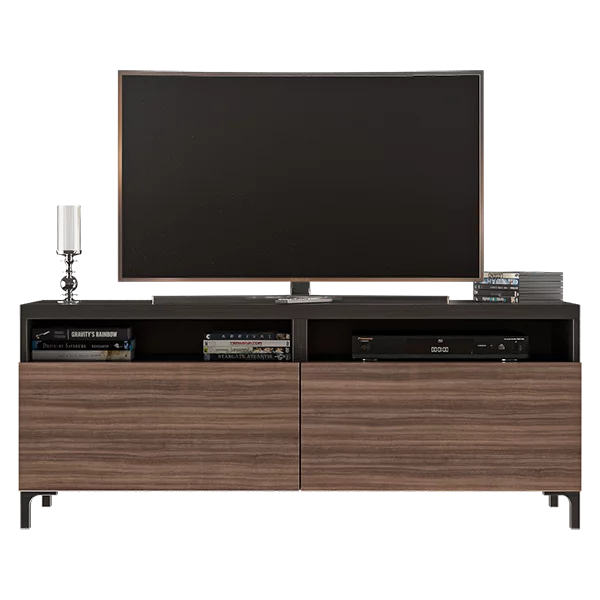
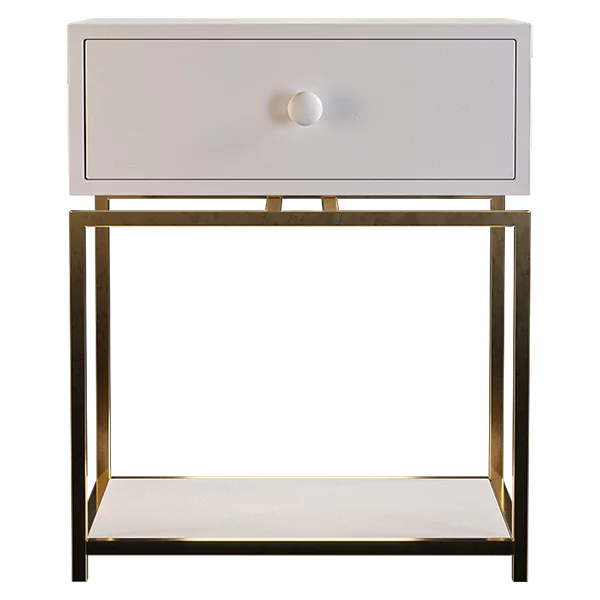
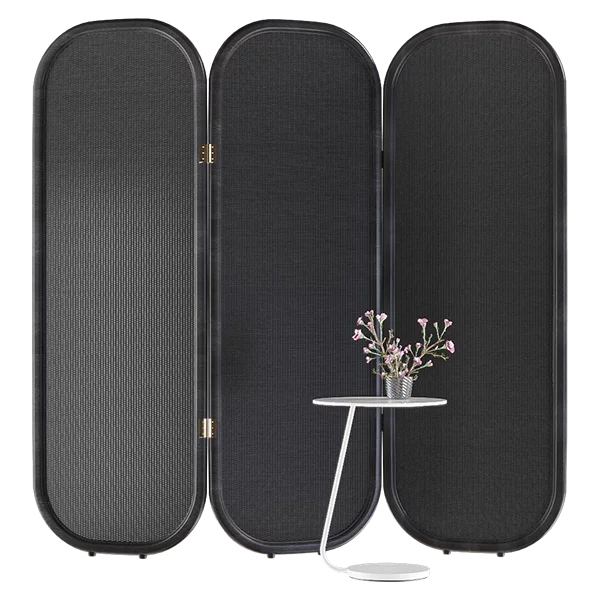
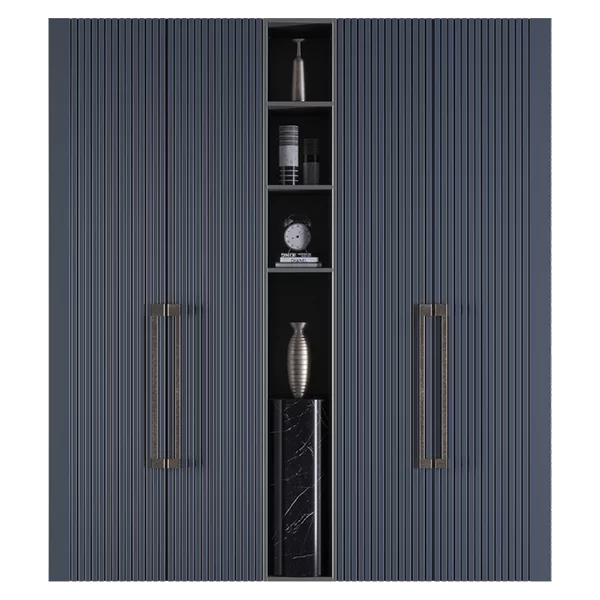
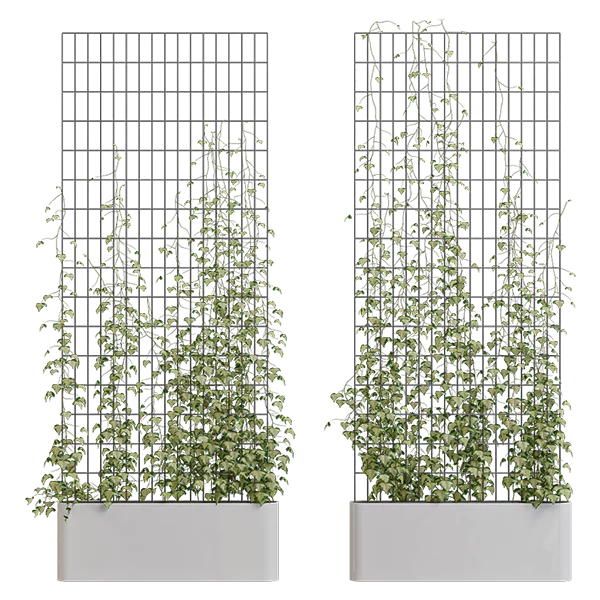
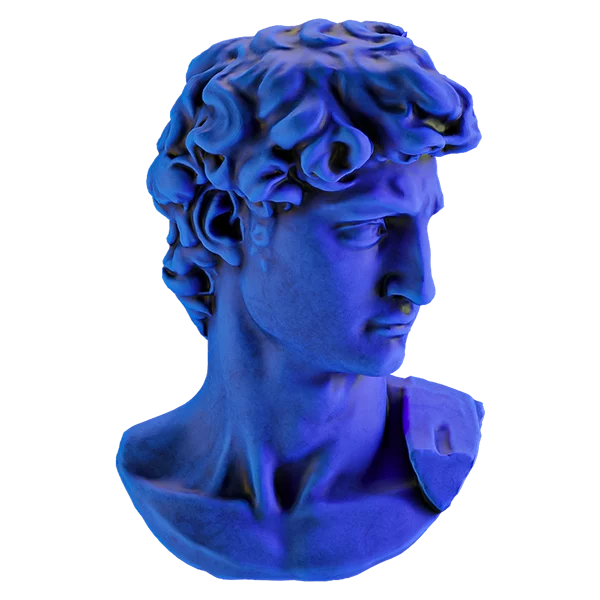
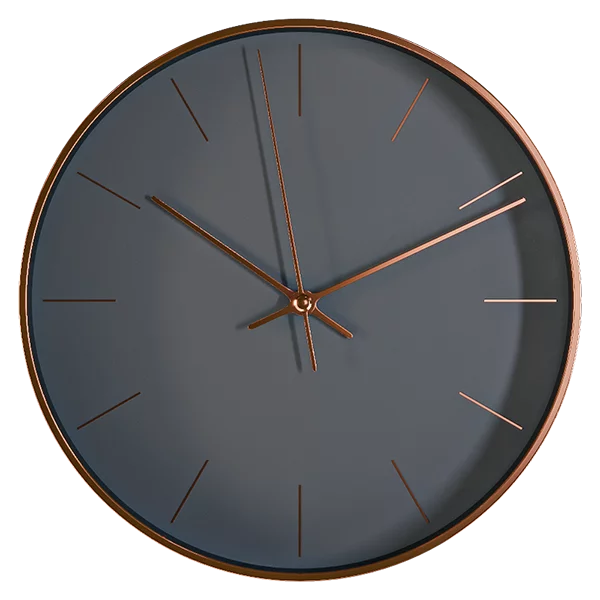
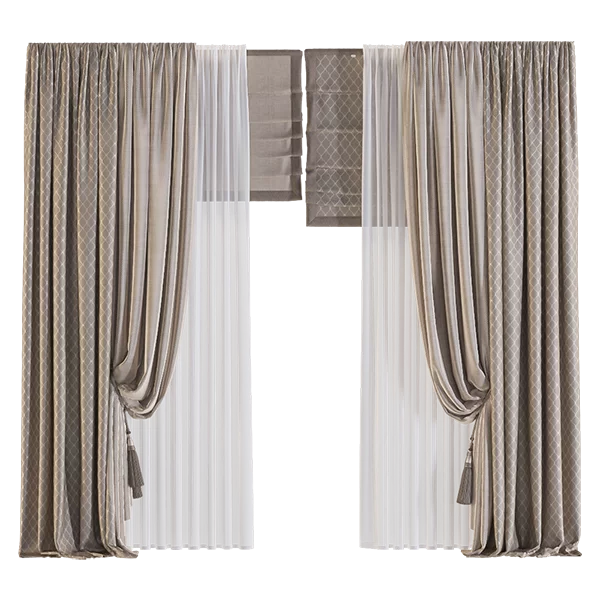
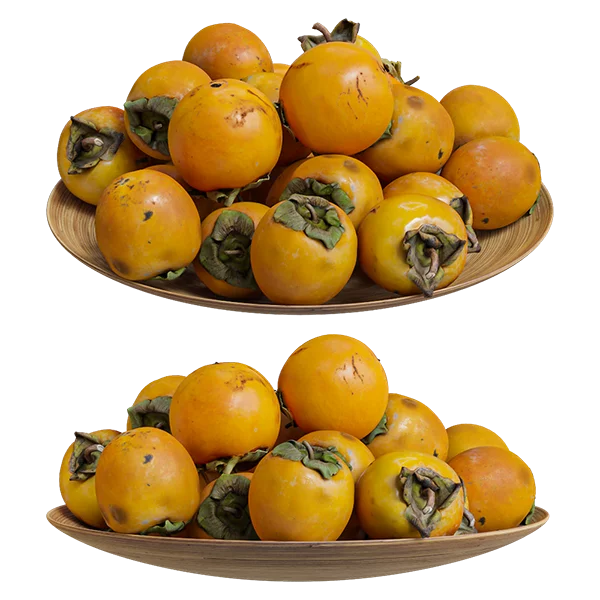
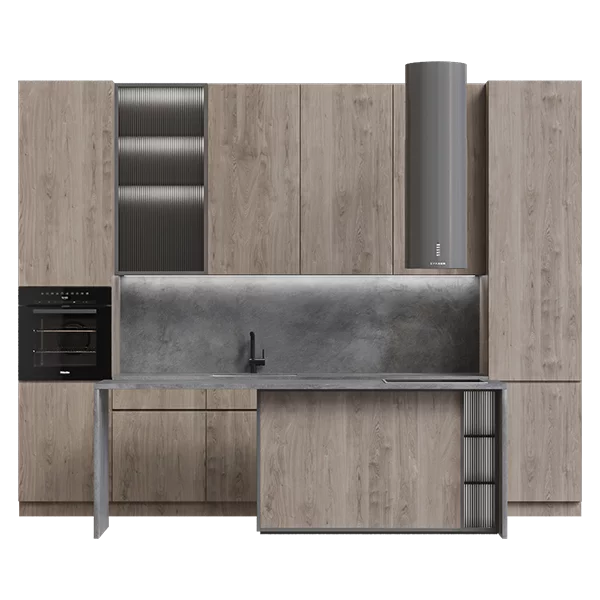
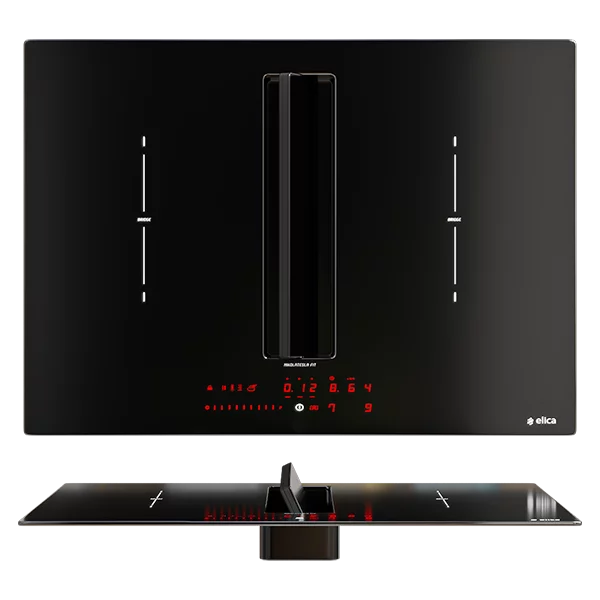
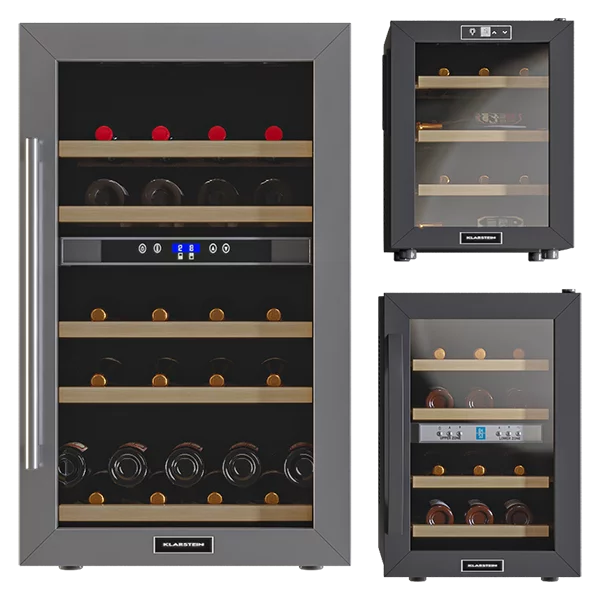
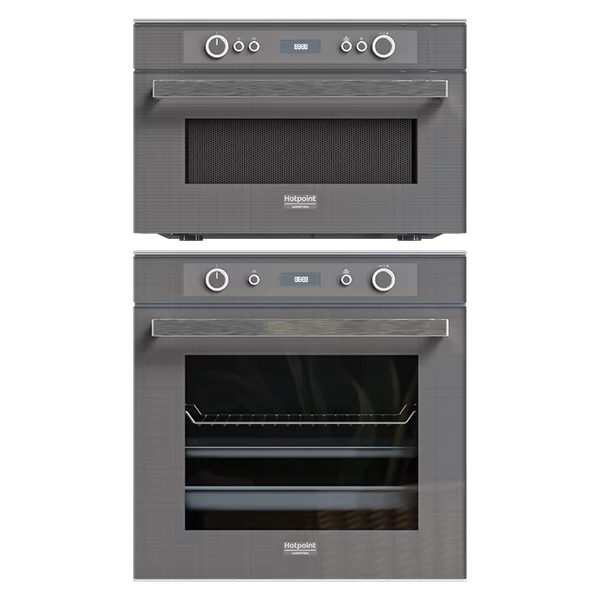
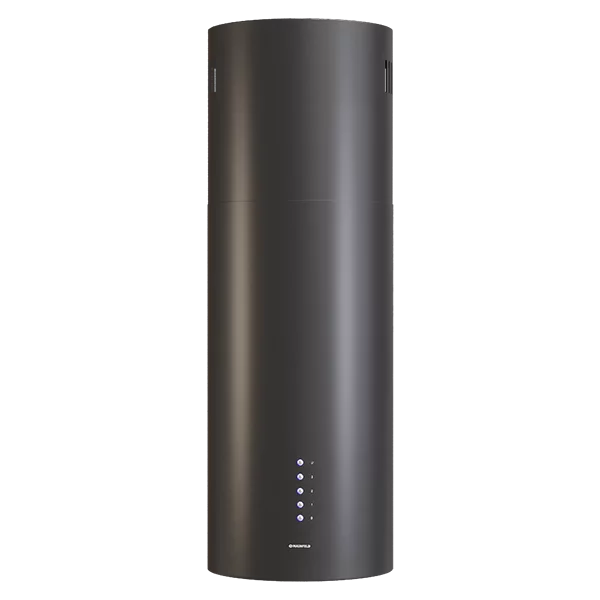
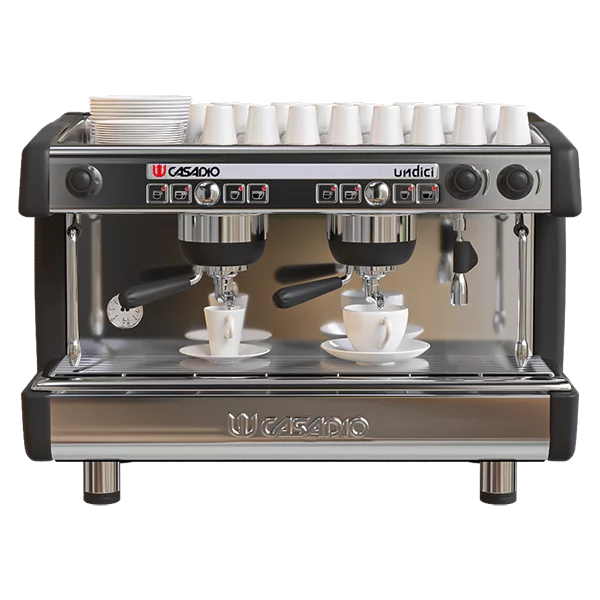
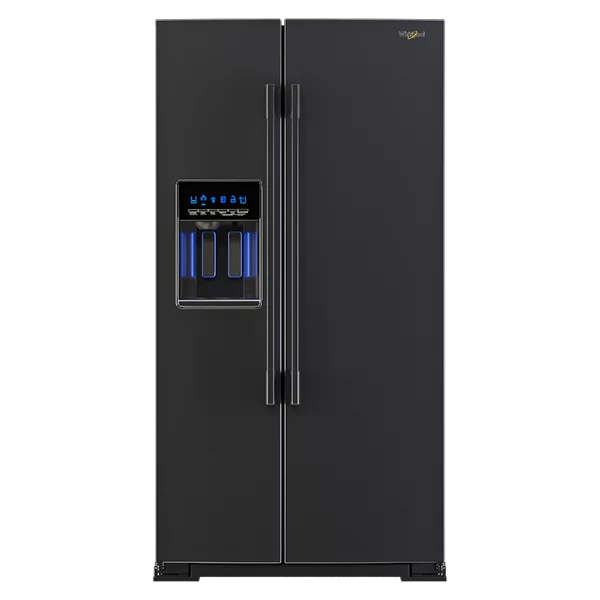
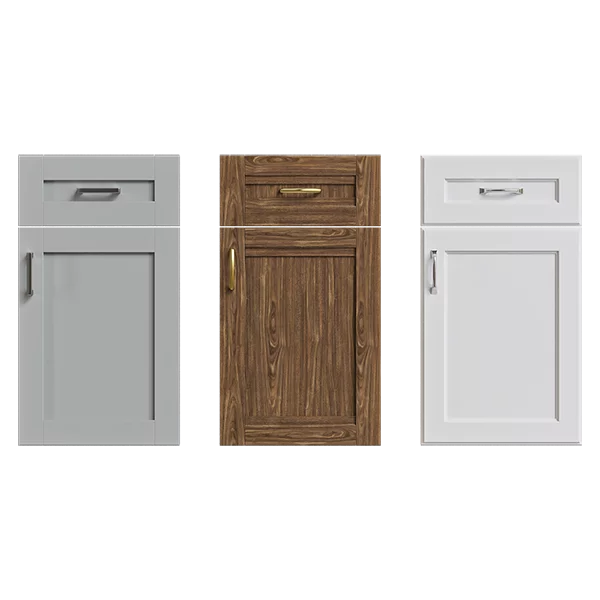
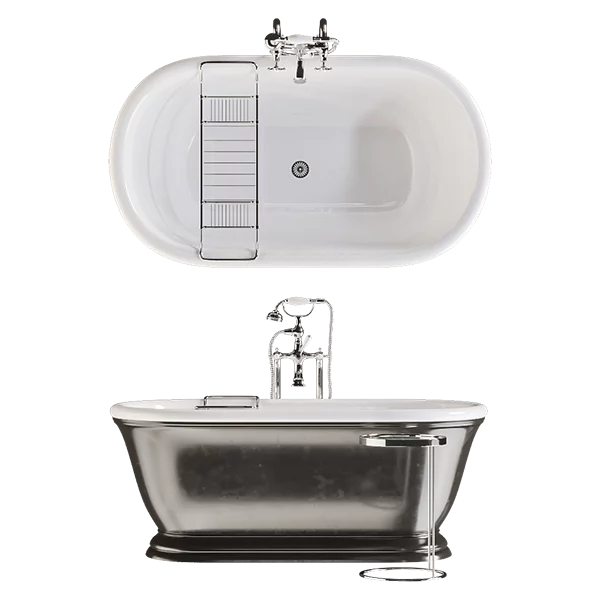
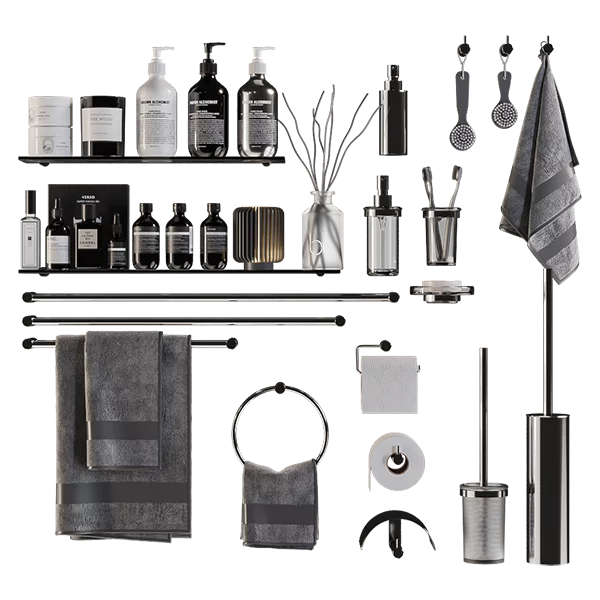
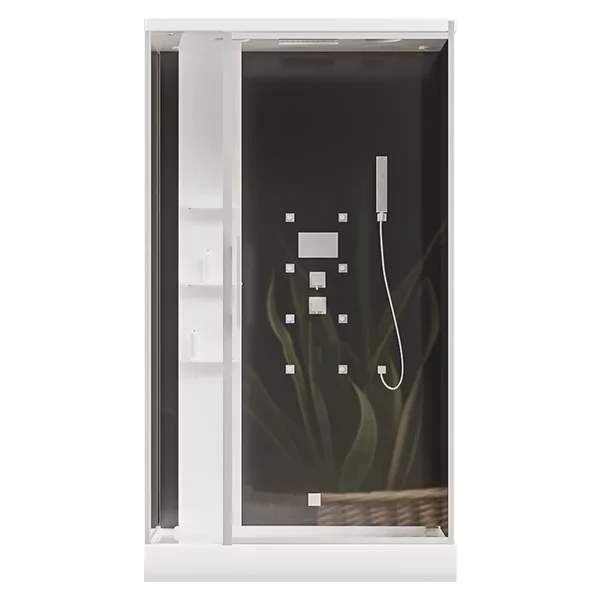
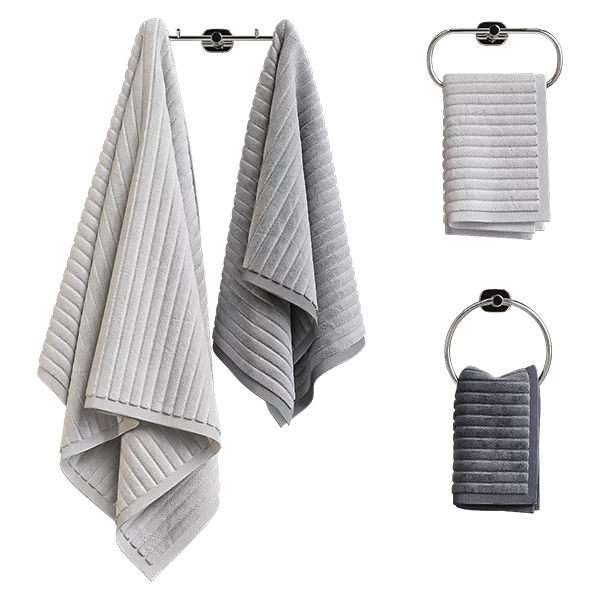
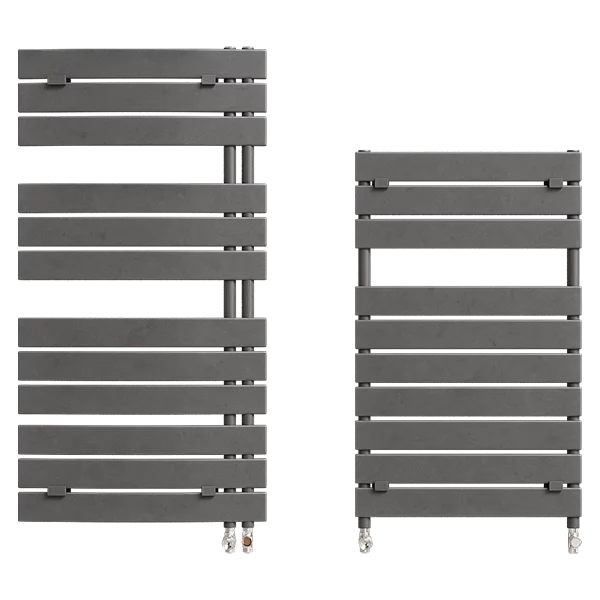
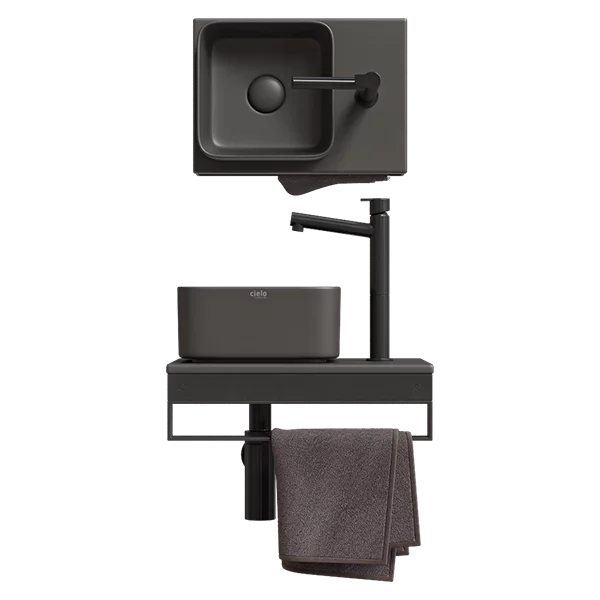
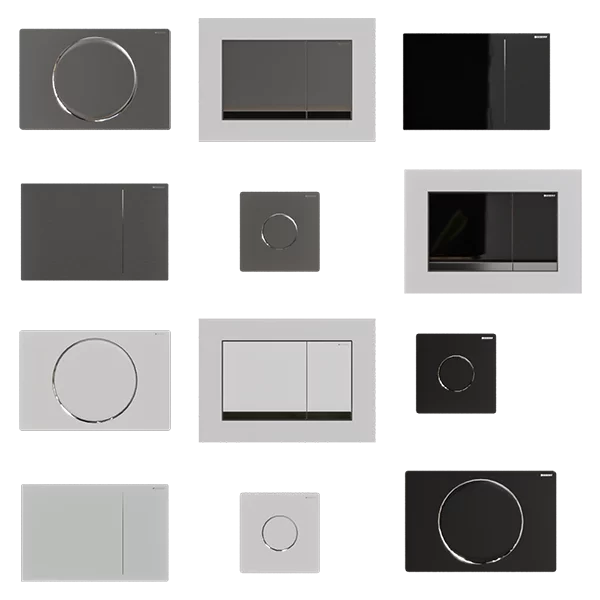
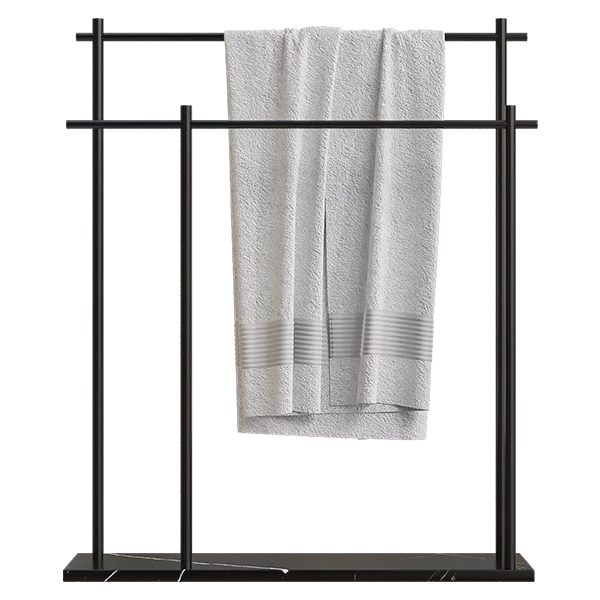
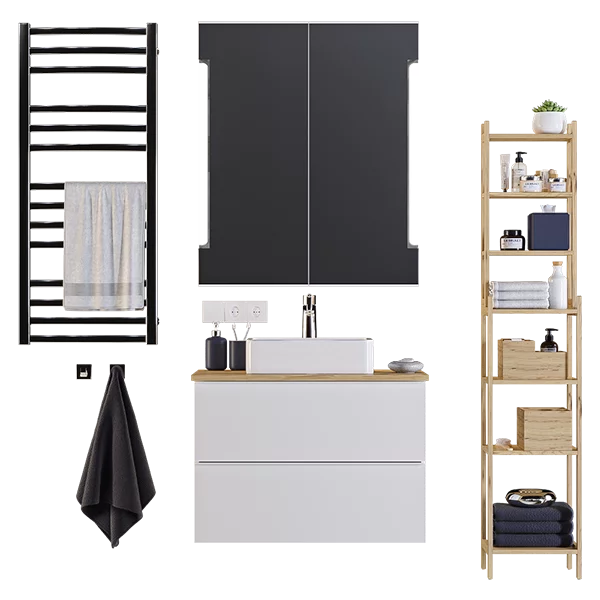
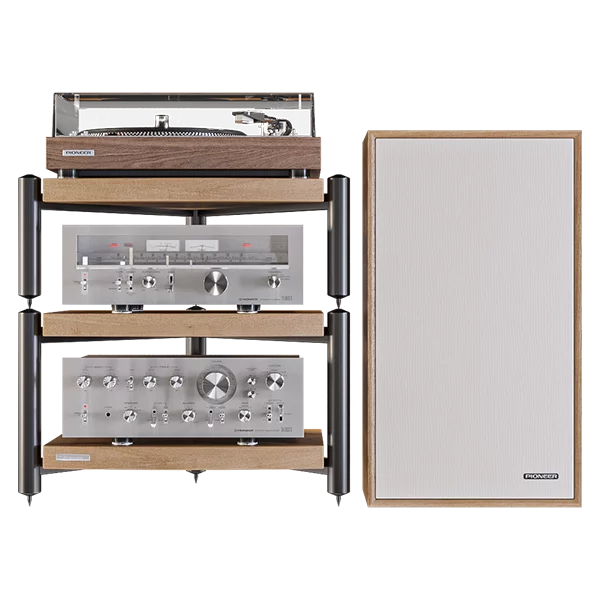
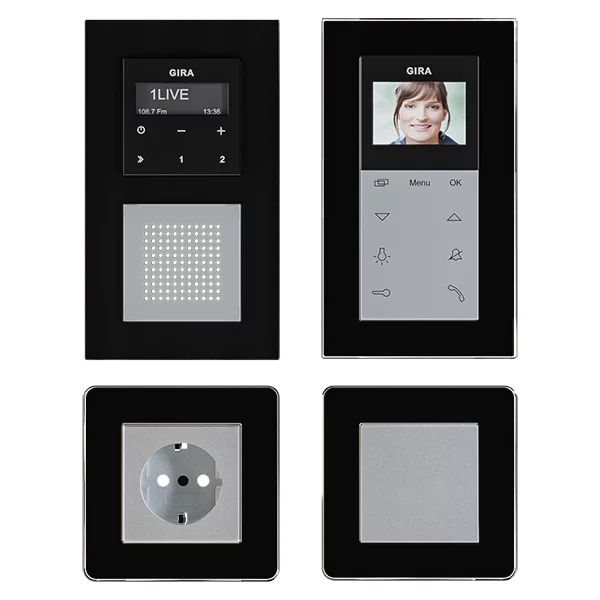
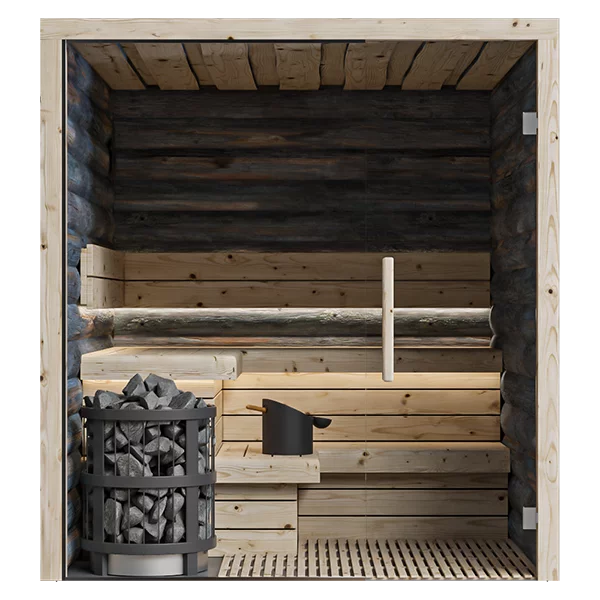
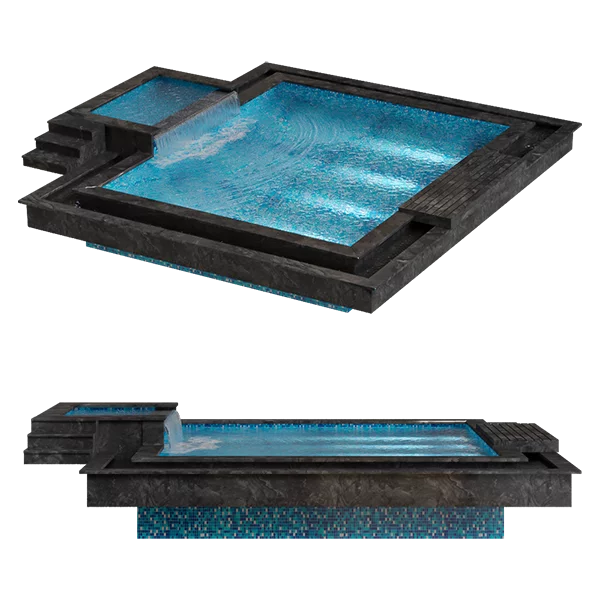
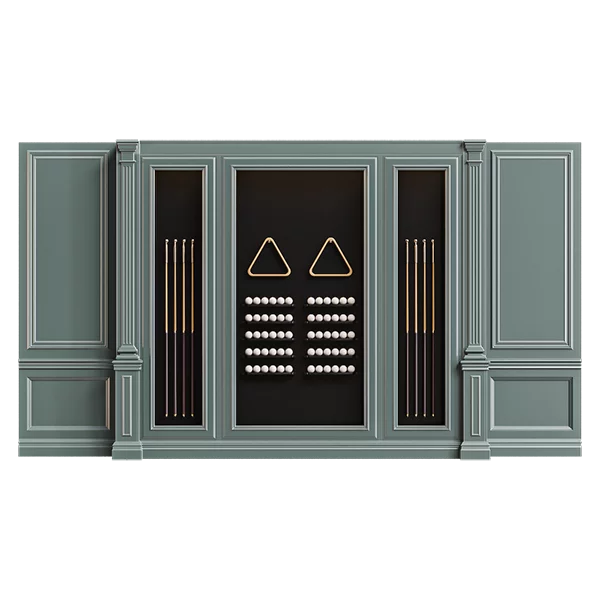
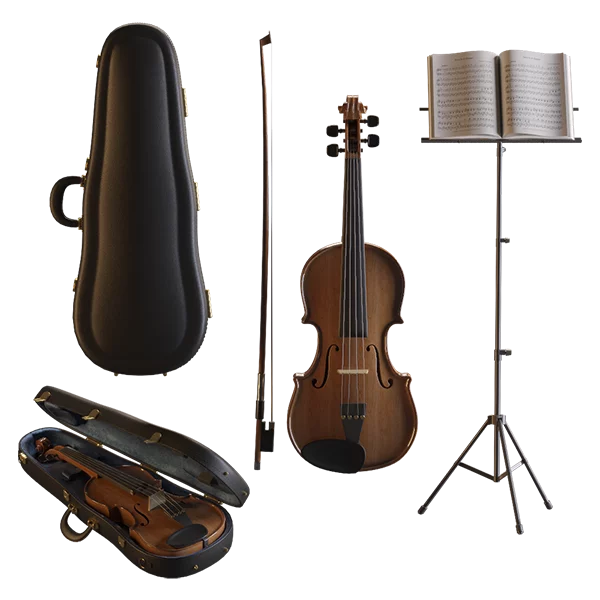
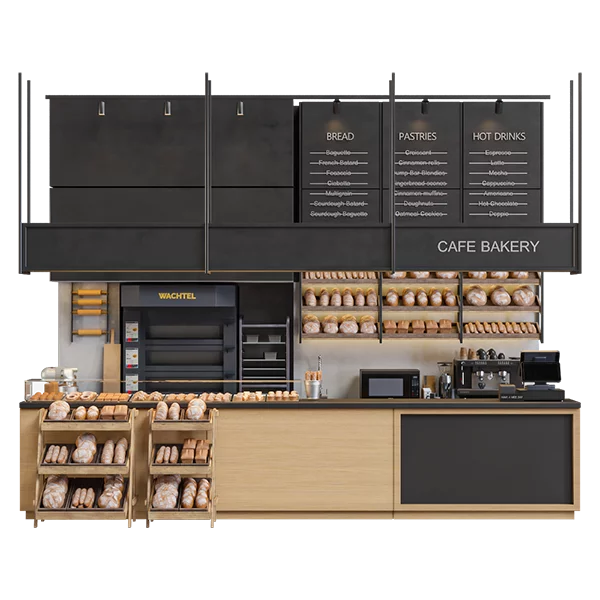
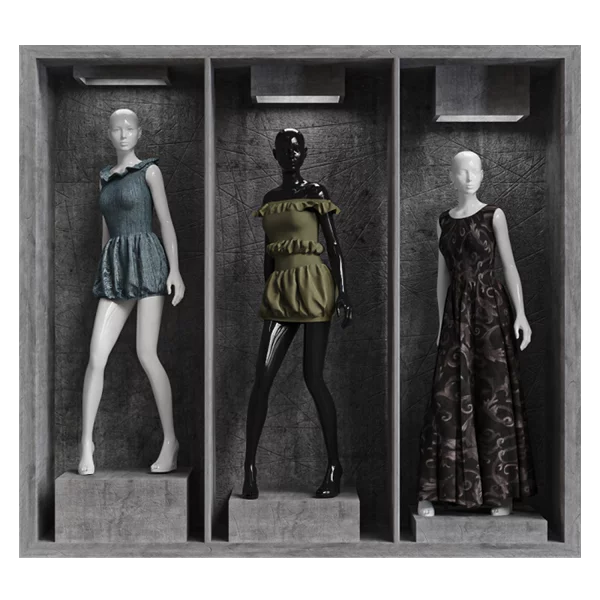
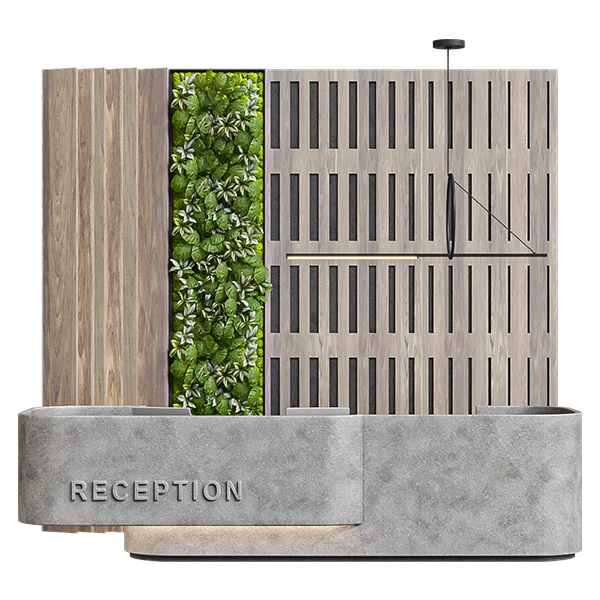
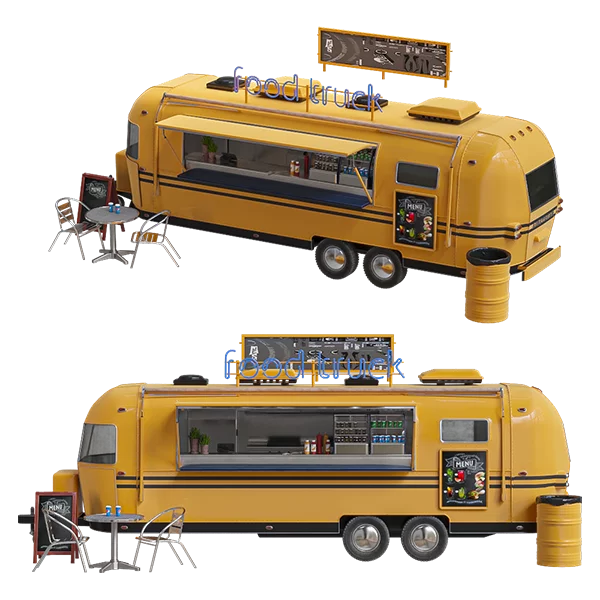
Preview: Model preview upload form. Only previews without backgrounds in .png format are accepted. A minimum of 3 previews is required for a model, a minimum of 1 preview for textures, and a maximum of 9 previews. Preview requirements are described below.
Creating Tags
This section only accepts nouns.
Tags are used in the singular.
Do not repeat the section name in tags; for example, in the "3D Panels" section, the "3D Panels" tag is not needed.
To fill in tags, use commas, without quotation marks, periods, or other separators except for the hyphen (-). Press the space bar to end the current tag and start a new one.
Tags must be written in Russian only, except for brand names.
Avoid using popular tags; tags should have a short description and be related exclusively to the model.
Archive Upload
Archives can only be uploaded in .rar, .zip, and .7zip formats.
You can upload archives up to 250 MB in size (if an archive of this size does not upload, open the properties and check the archive's disk space; it is usually slightly larger).
The archive must contain:
- 3ds Max files (minimum version).
- Export file (.obj or .fbx).
- Textures (must be in the same folder or at the end of the archive).
- Material library (optional).
- The MAXFILES.TXT file should be removed from the archive.
- Do not add previews (renderings) of the model to the archive.
- Adding text files with links to the archive is prohibited.
3ds Max File Versions
Models saved in 3ds Max 2023 and higher will not be accepted.
It is recommended to save 3ds Max files in the lowest possible version.
For example, if you have 3ds Max 2024 installed, you should save the file in version 2022.
Preparing 3ds Max files before submitting an archive for moderation:
To convert all geometry to poly, you can use the context menu. Modifier stacks should also be collapsed.
In the path to textures and files, avoid using the ' character and any characters or letters that are not part of the Russian or English alphabet.
The model must be positioned at zero coordinates without any rotations along the axes. Units of measurement in centimeters are preferred, but not required.
Sets containing multiple models from different categories
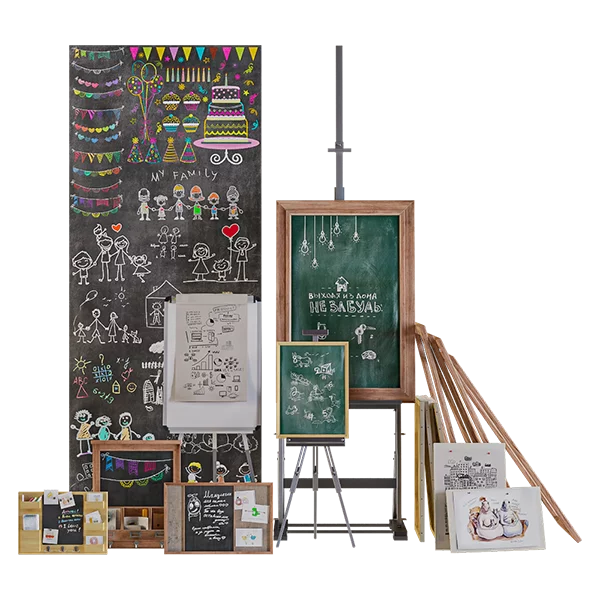
Scenes containing sets of multiple models (such as flowers, vases, lamps, etc.) along with previews will not be accepted. We recommend splitting the scene into multiple archives and uploading them separately with new previews. All models in a set must belong to the same category, and all models in an archive must be presented in the main preview.
Texture Paths and Cyrillic
The names of materials, textures, model elements, the entire path to the model, and folder names must be specified in English. If the computer does not have a Russian language, the paths will be displayed as different symbols, not letters, which will make it difficult for international users and buyers to understand. Paths should contain only the texture name, without folders or other elements.
Previews
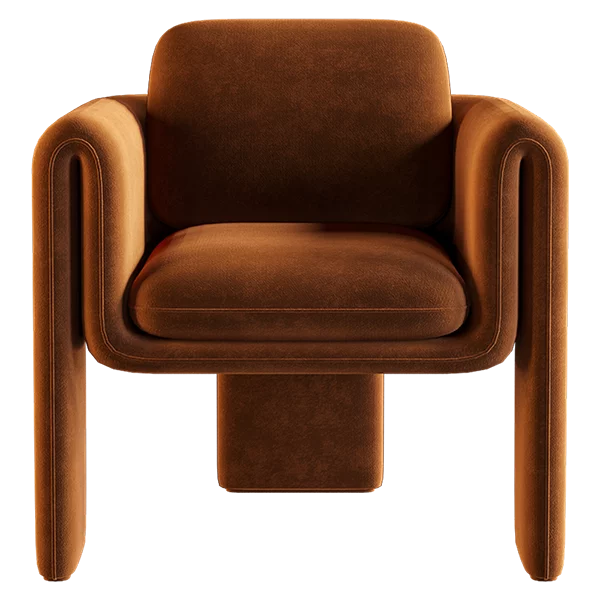
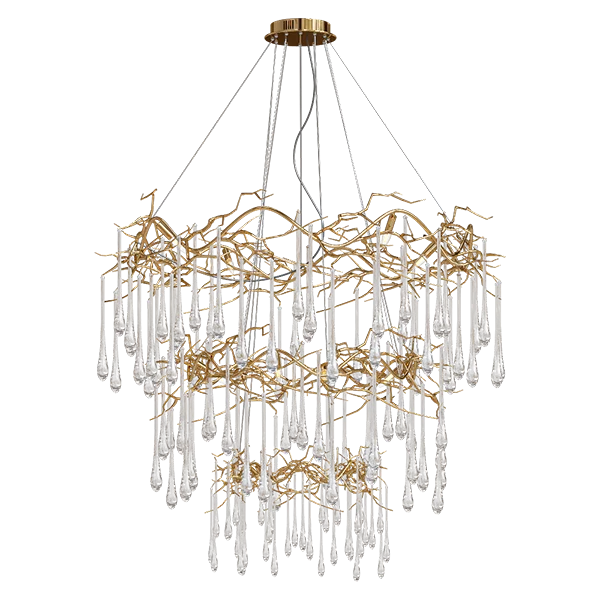
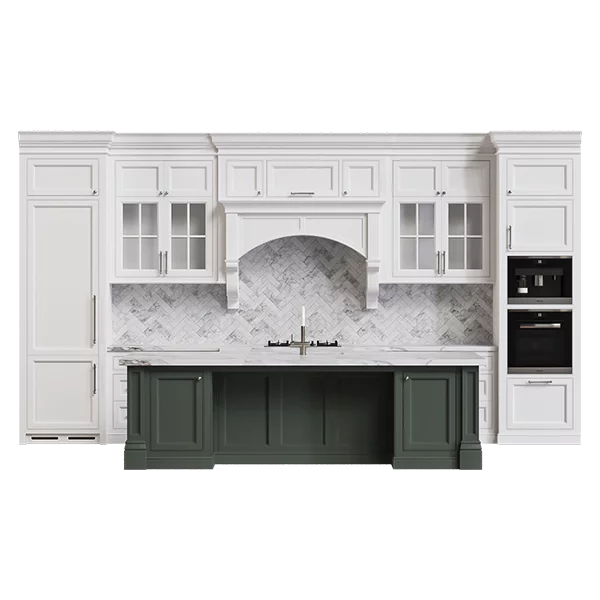
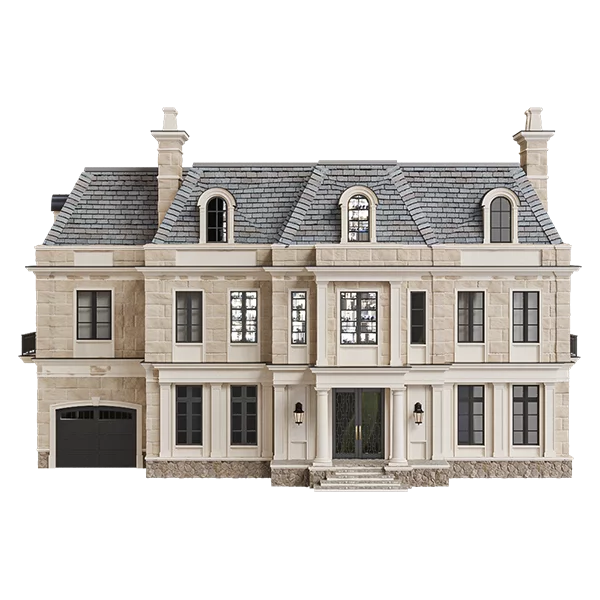
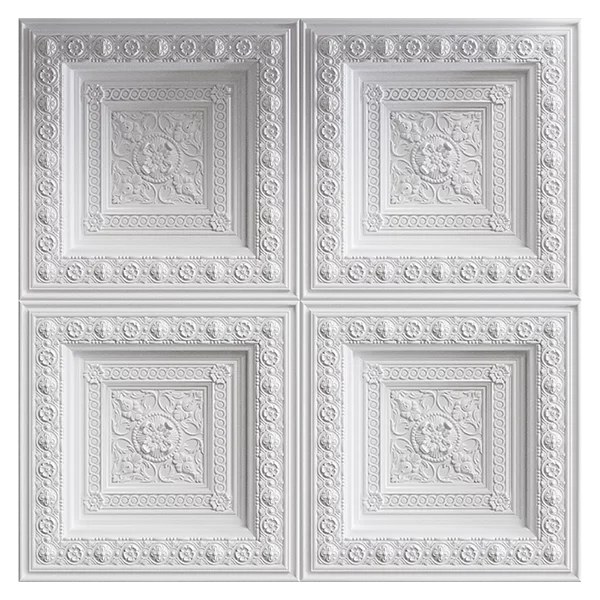
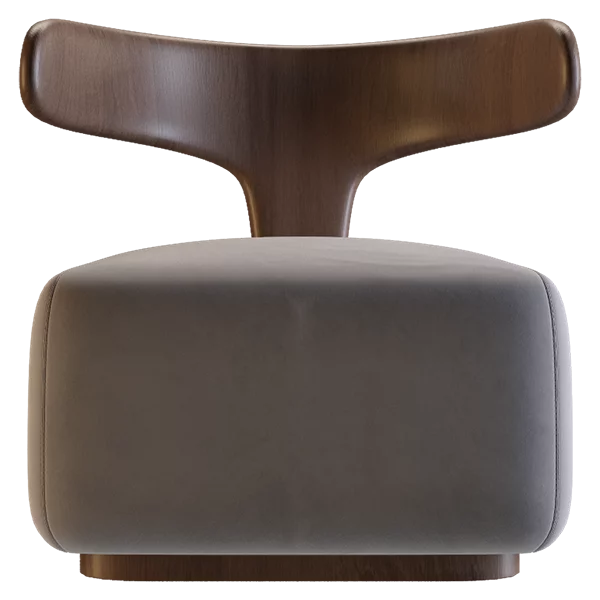
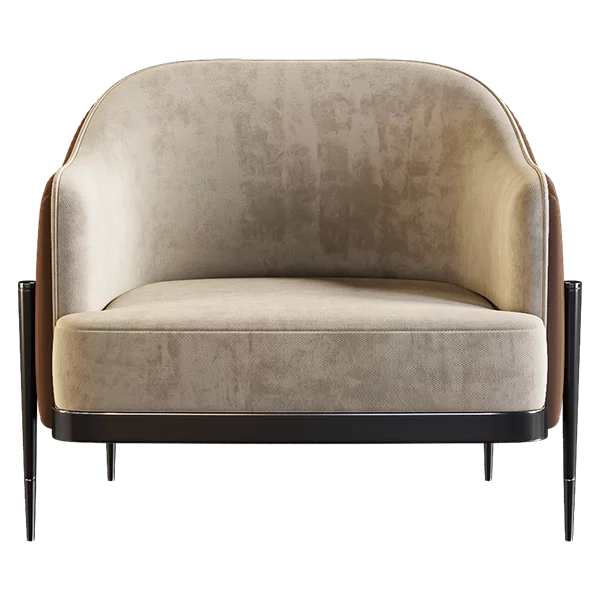
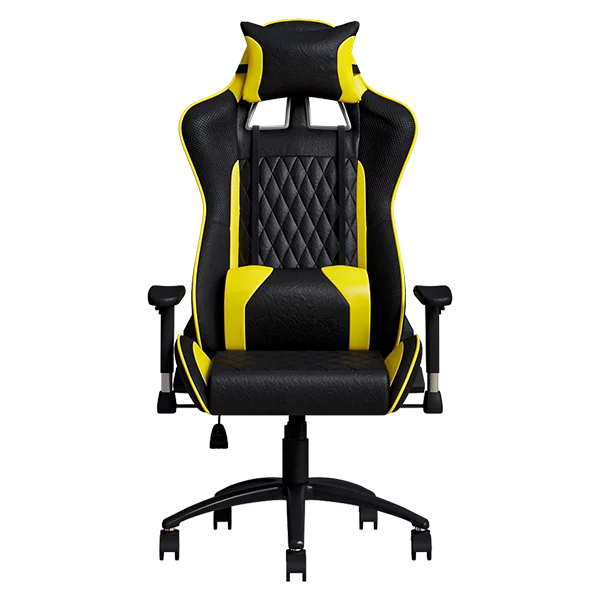
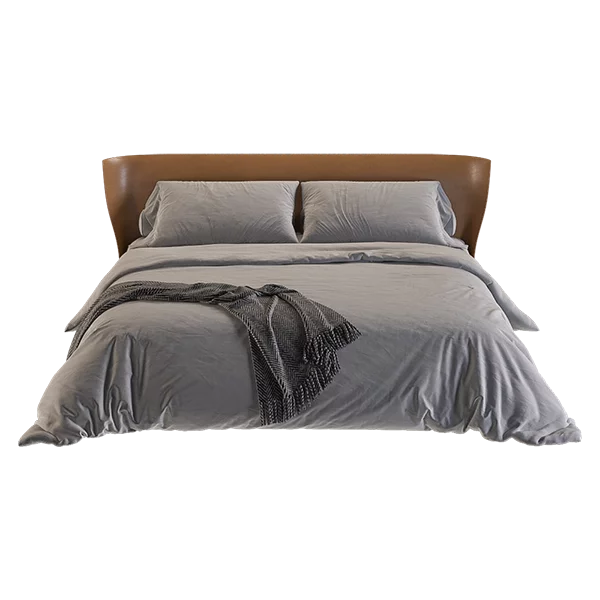
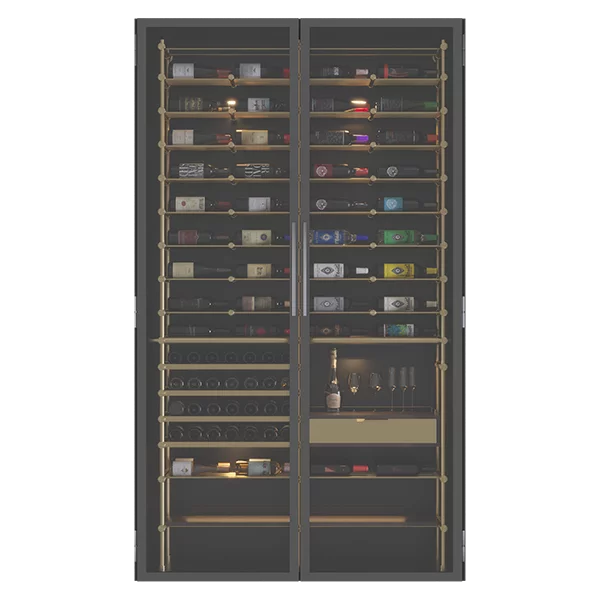
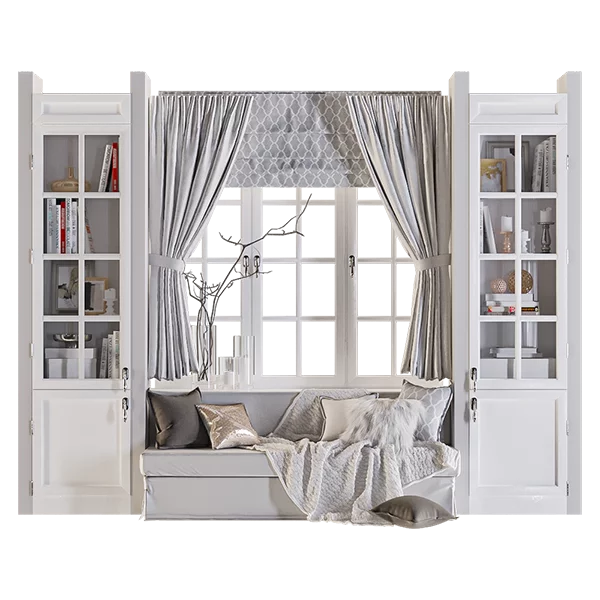
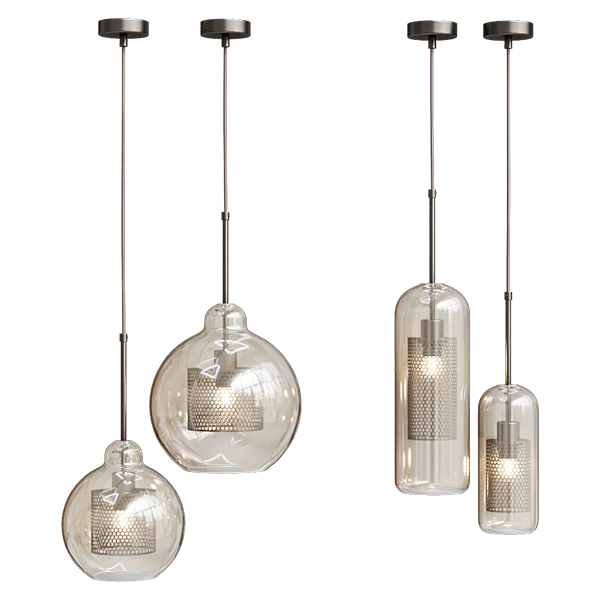
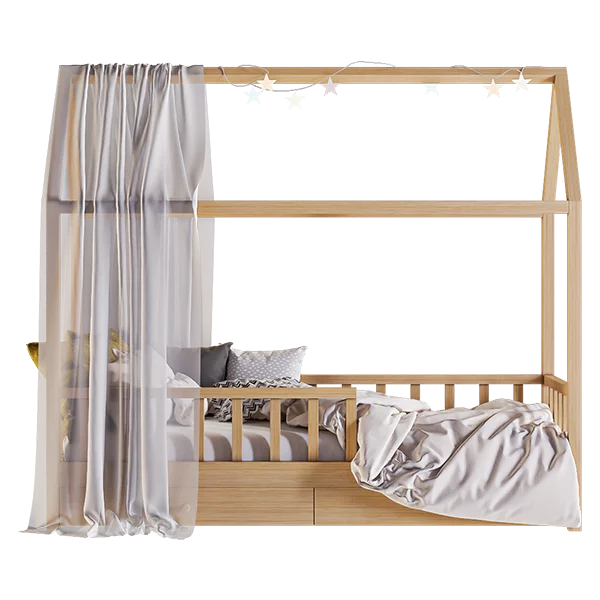
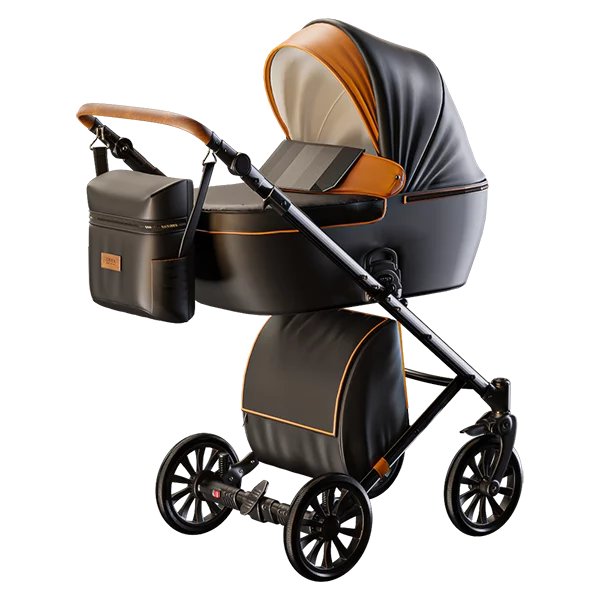
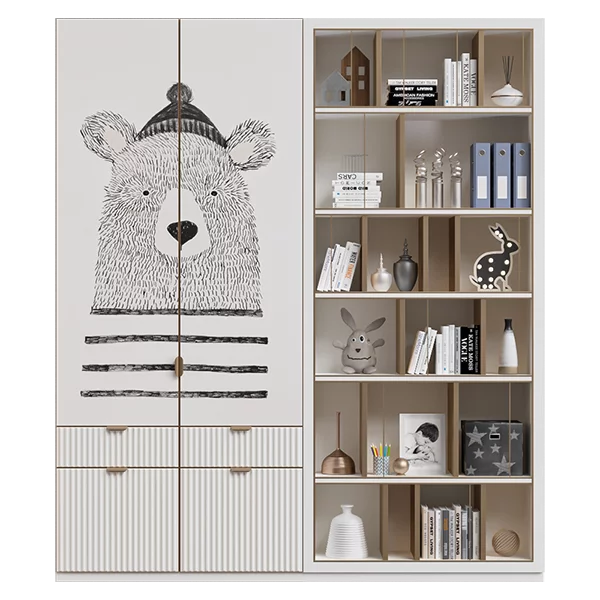
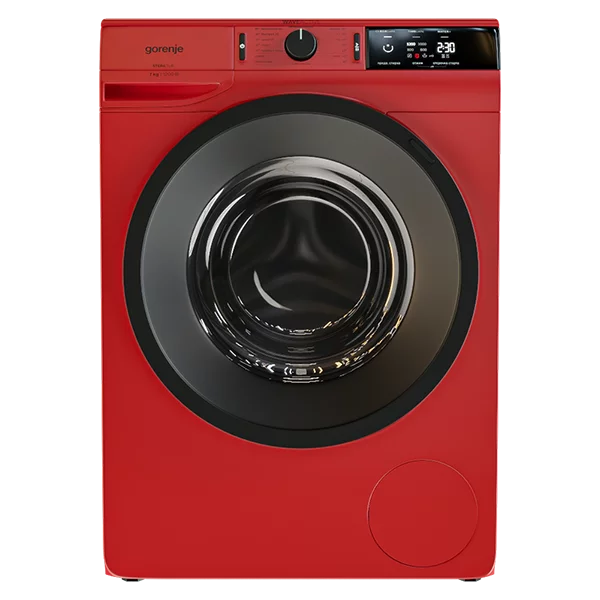
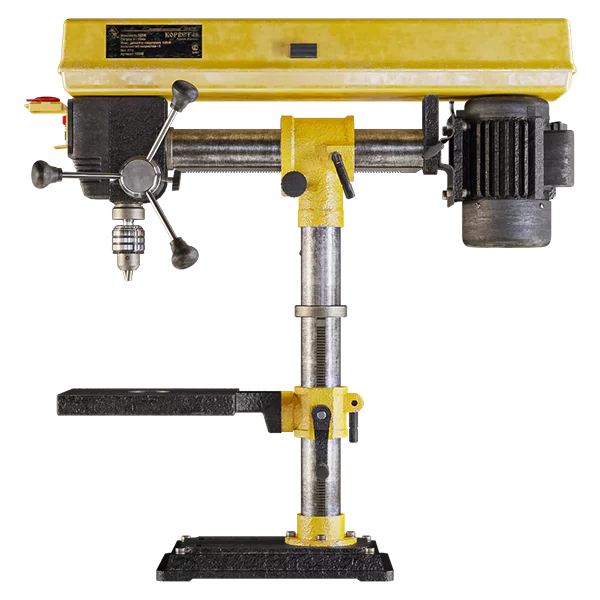
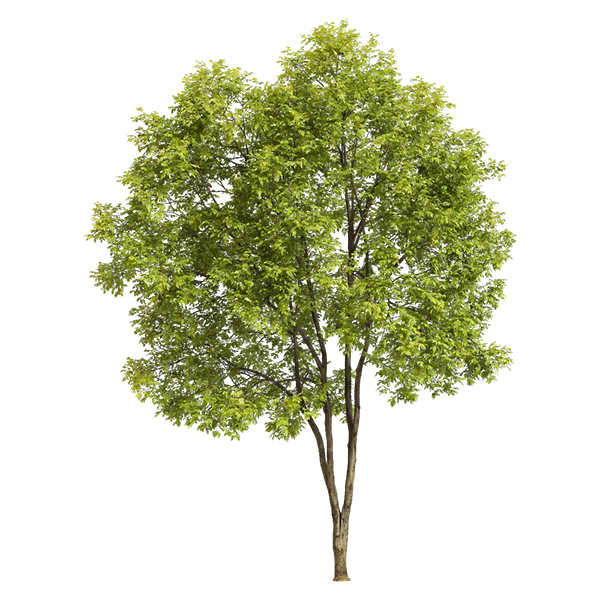
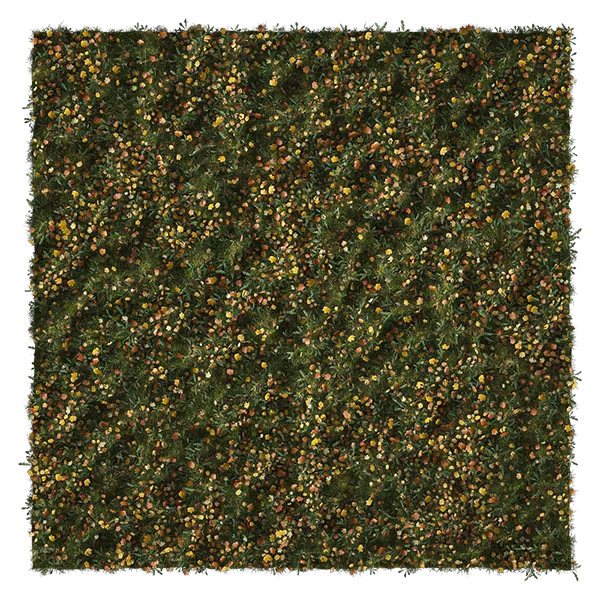
Images must be square. The minimum number of images for models is three, and for textures, one. The maximum number of images is nine.
The recommended image size is 1500 x 1500 pixels. Image files must be in .png format, and their maximum size must not exceed 10 MB.
No trademarks are allowed in images, except when models are uploaded by the manufacturer, in which case the watermark can be placed in the upper right corner.
All model previews must be background-free. The main preview must be informative and clear, without frames, unnecessary shadows, dark corners, glare, highlights, vignetting, noise, depth of field, or blur.
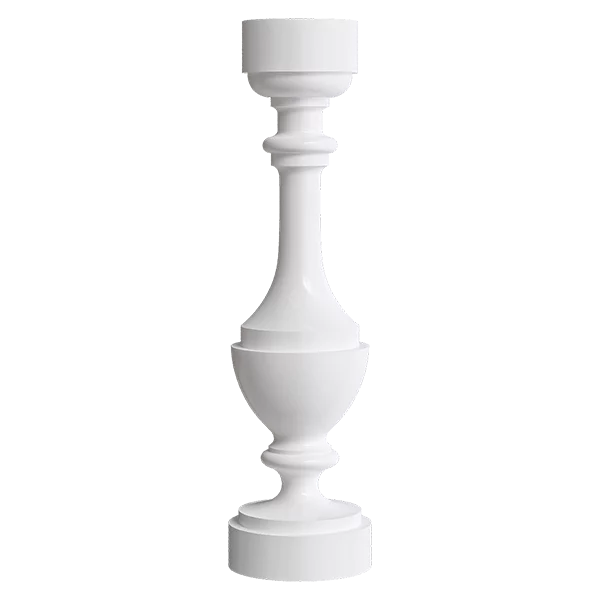
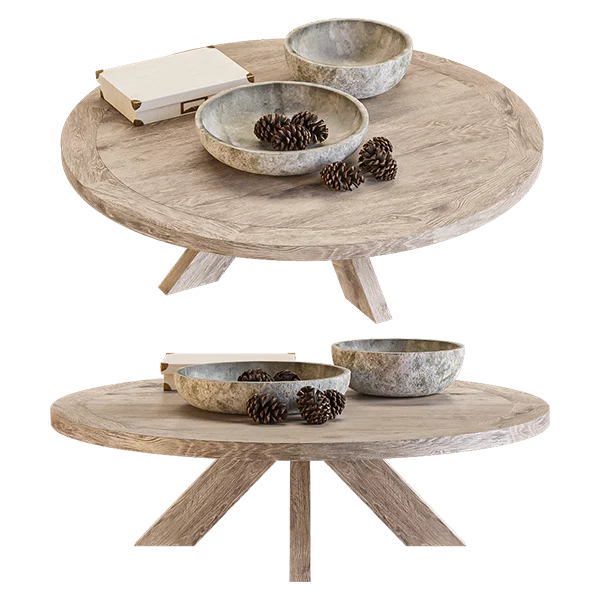
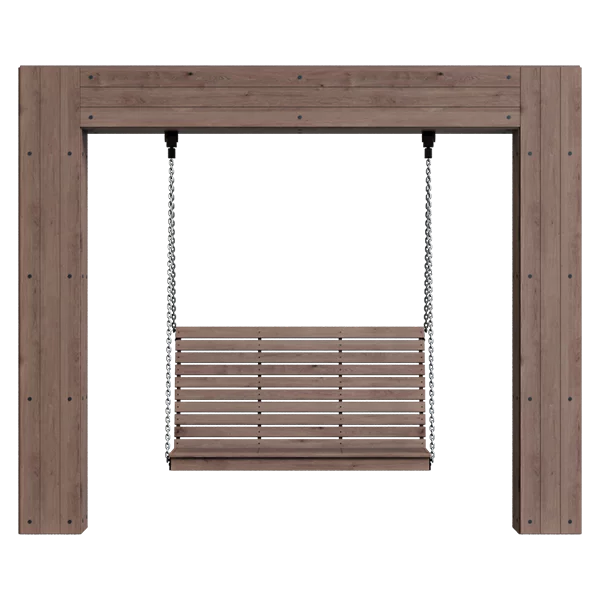
The first preview should always be side-view, and the second should be front-view. The model itself must be positioned exactly 60 pixels from the preview borders. You can achieve this by using the "Trimming" feature in Photoshop and then resizing the image to 1440 pixels.
Previews should only include the geometric elements present in the scene. We recommend using our scenes with preset camera and other parameters to maintain the overall concept and style of the site's database.
We discourage competition within the "creative team" of site authors, as we consider everyone to be accomplished professionals with their own unique perspective on composition and concepts. However, we require all authors to adhere to common upload standards. You can showcase your creativity with 5-9 previews.
Previews for models must be unique; if previews are not unique, the model will not be accepted by moderators.
You can upload a scene for rendering by following this link.
Inverted Normals and a True Mesh
A true mesh is a mesh consisting only of square (rectangular) and triangular polygons, without coplanar faces, gaps, or faces with twisted normals.
Model Status and Submitting a Model for Revision
Model status is determined solely by the moderator. Each model has a chat with the moderator during the moderation process. If the model fails moderation, you will receive a notification in the chat indicating the errors. Additionally, if the model passes moderation, you will also receive a notification and a reward for your account.
The moderator will not be involved in correcting errors related to the 3D model or its preview during the initial moderation stage. However, the moderator can edit general information regarding the model's profile.
If you disagree with your model's status, you can message a moderator in chat to clarify the evaluation criteria that prevented your model from passing moderation. The moderator will point out the unmet criteria. All models can have either the status "Under Moderation," "Passed Moderation," or "Failed Moderation."
After a model fails moderation, they will remain in the site's database for 7 days, after which they will be deleted.
Correction and Moderation
If, after two attempts to make corrections to the preview, geometry, archive, textures, materials, etc., the model is still not approved, the model will be removed from moderation without notice. If the author frequently uploads non-working models, they will receive a warning. Repeated attempts to upload non-working models will result in access to uploading models being blocked, and an upload ban will be placed on their account.
Model moderation occurs three times a week: Monday, Tuesday, and Wednesday. If the moderator does not have time to review all models, the remaining workload is carried over to the next moderation day and reviewed first.
Replacing a Preview or Model
To change model data, edit the current model instead of uploading a new one. After making changes, the moderator receives a notification, and the model is automatically placed in the moderation queue with the status "awaiting moderation."
Errors in Models in the Database
If you find errors in a model, please fill out the "Report a Problem" form attached to each moderated model. Select the relevant issue from the list provided and provide a brief description.


